



Multi-Domain Strategies for Better Email Metrics
Sending cold emails often fails because of poor infrastructure, not bad content. A multi-domain strategy - using multiple lookalike domains (e.g., tryacme.com) instead of your main domain - protects your email reputation and boosts deliverability. Here's why it works:
- Protects your primary domain: Avoids damage from bounces, spam complaints, and unsubscribes.
- Improves inbox placement: Proper SPF, DKIM, and DMARC setup increases placement rates by 23%.
- Distributes risk: Spreads email activity across domains, reducing the chance of being flagged as spam.
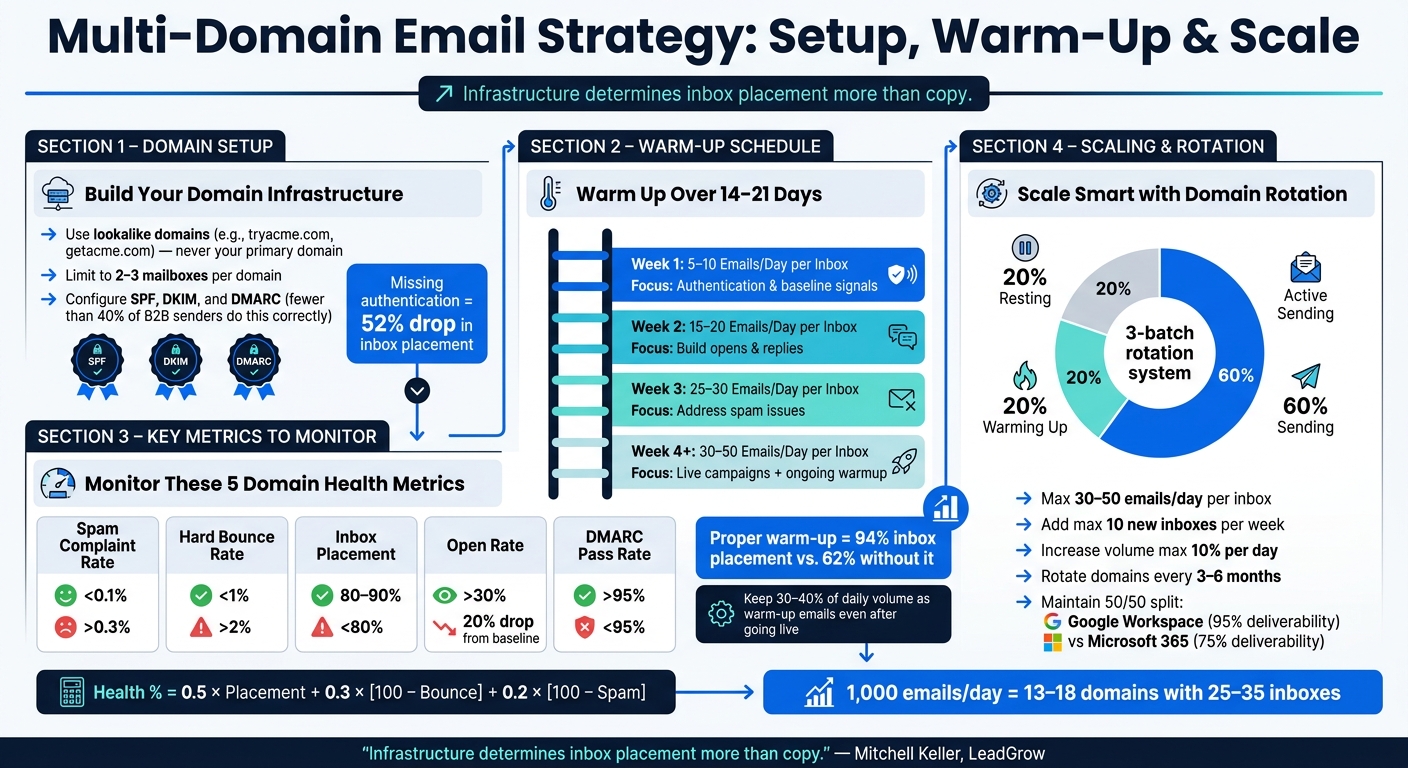
- Supports scaling: Sending 1,000 emails/day requires 13–18 domains with 25–35 inboxes.
Key Takeaways
- Use lookalike domains: Prevents harm to your main domain's reputation.
- Limit emails per inbox: Send 30–50 emails/day per inbox to avoid spam filters.
- Warm up domains: Gradually ramp up email volume over 14–21 days to build trust.
- Monitor metrics: Track bounce rates (<1%), spam complaints (<0.1%), and inbox placement (>80%).
- Automate with tools: Platforms like Icemail.ai simplify domain setup, warm-up, and monitoring.
Quick Comparison of Tools
| Feature | Icemail.ai | Zapmail |
|---|---|---|
| Setup Time | ~10 Minutes | 3–4 Days |
| Cost per Mailbox | $2.5/month | ~$3.50/month |
| DNS Automation | Yes | Not specified |
| Google/Microsoft Support | Both | Both |
A multi-domain approach isn't just a setup - it's a system you maintain daily. Keep domains healthy, rotate them regularly, and use tools to streamline the process.
How to Set Up a Multi-Domain Email Architecture
How to Segment Domains for Different Campaign Types
When it comes to cold email outreach, keeping your primary domain out of the line of fire is critical. Instead of using your main domain (e.g., "acme.com"), opt for lookalike domains such as "getacme.com" or "tryacme.com." This approach helps shield your brand's primary domain from potential reputation issues caused by cold email campaigns.
To take it a step further, segment your domains based on the type of campaign, the client, or the target audience. This strategy ensures that any reputation damage is contained within specific domains. Limit mailboxes to 2–3 per domain to avoid being flagged as a cold email farm by spam filters. Additionally, use real sender names, like "james@getacme.com", instead of generic ones like "info@getacme.com." This small detail can make a big difference in avoiding filters designed to detect automation patterns.
Once your domains are properly segmented, the next step is setting up DNS and authentication protocols.
DNS and Authentication Setup
To protect your domain reputation and improve deliverability, configure SPF, DKIM, and DMARC records according to the latest standards. Surprisingly, fewer than 40% of B2B outbound senders have all three records correctly configured, which can lead to major issues. As the Inbox Ledger Team warns:
"A misconfigured SPF DKIM DMARC setup does not just hurt deliverability; it actively flags your domain as suspicious."
Here's a quick overview of these protocols and their updated requirements for 2026:
| Protocol | Purpose | 2026 Standard |
|---|---|---|
| SPF | Authorizes sending IP addresses | Limit to 10 DNS lookups; use -all for mature domains |
| DKIM | Adds a cryptographic signature to emails | Use 2048-bit keys and rotate annually |
| DMARC | Defines policies for email authentication failures | Include rua tags for aggregate reporting |
Be mindful of SPF's 10 DNS lookup limit. If you exceed it, a permerror can occur, causing authentication failures. To stay within the limit, you can use SPF flattening services to replace include statements with direct IP ranges. Additionally, even domains used only for sending emails should have MX records, as their absence might raise red flags.
For DMARC, start with a monitoring policy (p=none), then gradually move to quarantine, and finally enforce a rejection policy (p=reject) once you've confirmed stable email alignment.
With these protocols in place, the next step is to scale mailbox provisioning effectively.
Provisioning Mailboxes at Scale
Setting up mailboxes manually is a logistical nightmare when scaling. That's where bulk provisioning platforms come in handy.
Icemail.ai is a standout option for this purpose. It allows you to bulk-purchase Google Workspace and Microsoft mailboxes for just $2.5 per mailbox, with automated DNS record configuration included. The platform simplifies the onboarding process, taking about 10 minutes to set up, and ensures DNS records are configured correctly. It also provides separate workspace accounts for each client, ensuring clear isolation, and supports 1-click mailbox exports. Compared to Zapmail, which takes 3–4 days for setup, Icemail.ai offers a much faster and more streamlined experience.
| Feature | Icemail.ai | Zapmail |
|---|---|---|
| Setup Time | ~10 Minutes | 3–4 Days |
| Automated DNS (SPF/DKIM/DMARC) | Yes | Not specified |
| Client Isolation | Separate Workspaces | Standard |
| Mailbox Cost | $2.5 per mailbox | Not specified |
| Google & Microsoft Support | Both | Both |
Considering that domains without proper SPF, DKIM, and DMARC records see a 52% drop in inbox placement, automating this process is a no-brainer. It ensures your emails land where they're supposed to - right in the recipient's inbox - from day one.
Cold Email Unlimited Clients Machine: The Multi-Domain Strategy - Method 5 of 5
How to Warm Up Domains for Better Deliverability
Once you've completed segmentation and DNS configuration, the next step is warming up your domains. Skipping this step can lead to serious issues - bounce rates can increase by 67%, and blacklisting often occurs within just 14 days.
Building a Gradual Warm-Up Schedule
The warm-up process takes time, typically 14 to 21 days, and rushing it often leads to deliverability problems, especially for new campaigns. Here's a step-by-step schedule you can follow:
| Week | Daily Volume (per inbox) | Focus |
|---|---|---|
| Week 1 | 5–10 emails | Establish authentication and baseline signals |
| Week 2 | 15–20 emails | Build engagement rates (opens and replies) |
| Week 3 | 25–30 emails | Address spam issues and gradually increase volume |
| Week 4+ | 30–50 emails | Transition to live campaigns while maintaining warm-up activity |
One key takeaway: don't stop warming up your domain once live campaigns begin. Keep 30–40% of your daily email volume dedicated to warm-up emails. This practice creates a buffer to protect your domain reputation from any negative signals caused by cold outreach.
Best Practices to Follow During Warm-Up
When starting out, stick to plain-text emails. This reduces the likelihood of triggering spam filters, especially when your domain is still building its reputation. Using authentic sender names and scheduling emails between 8 AM and 6 PM also helps mimic natural, human-like behavior.
Begin by targeting warm leads or even colleagues. This approach generates positive engagement signals - such as opens, replies, and emails being moved out of spam folders. Aim for a reply ratio of 30–45% during this phase to establish trust with inbox providers. Dimitar Petkov, Co-Founder of LeadHaste, emphasizes the importance of this ongoing effort:
"Warmup is not a setup step. It is a discipline. The teams running outbound at real volume in 2026 are the ones who built the network, ramped it slowly, and treat warmup as an ongoing practice."
To track your progress, use tools like Google Postmaster Tools to monitor your domain reputation. Ideally, your domain should reach a "Medium" or "High" reputation rating before launching full-scale cold campaigns.
Tools That Automate the Warm-Up Process
If you're managing only one or two inboxes, manual warm-up might be feasible. But for larger operations, automation is essential. Automated tools simulate real engagement - like opens, replies, and "move to primary" actions - using networks of real mailboxes to create the appearance of genuine business activity.
Platforms like Icemail.ai simplify the process by offering pre-warmed mailboxes with 6–12 weeks of sending history. This allows you to start sending 30–50 emails per day immediately, for just $5/month per mailbox. For standard Google Workspace and Microsoft mailboxes, Icemail.ai offers pricing at $2.5/month - a more affordable option compared to competitors like Litemail ($4.99/month) or Instantly.ai ($37/month).
Domains that undergo proper warm-up achieve a 94% inbox placement rate, compared to only 62% for those that skip the process. This difference directly affects reply rates, pipeline growth, and ultimately, revenue.
How to Monitor and Improve Domain-Specific Metrics
Once your domains are warmed up, staying on top of their performance is crucial. As Eric Nowoslawski puts it:
"Deliverability isn't a feature you set up once. It's a system you maintain every single day."
To keep your domains healthy, tracking specific metrics is essential.
Key Metrics to Track Per Domain
Each domain should have its own performance scorecard. Focus on these five metrics: spam complaint rate, hard bounce rate, inbox placement rate, open rate, and DMARC pass rate. These indicators provide a clear picture of your domain's health.
| Metric | Healthy Threshold | Alert/Action Threshold |
|---|---|---|
| Spam Complaint Rate | < 0.1% | > 0.3% (Immediate Block Risk) |
| Hard Bounce Rate | < 1% | > 2% (Pause & Verify List) |
| Inbox Placement | 80%–90% | < 80% (Pause & Rest Domain) |
| Open Rate | > 30% | 20% drop from baseline |
| DMARC Pass Rate | > 95% | < 95% (Check DNS Config) |
Aggregate data:
Each metric plays its part in identifying potential issues. For instance, a spam complaint rate above 0.3% can lead to immediate blocking, especially since Google enforces strict limits for bulk senders. Similarly, bounce rates exceeding 2% signal poor list quality, which can trigger spam filters. A significant drop in open rates - 20% or more - often indicates domain degradation.
Given that Apple's Mail Privacy Protection can skew open rate data, seed testing offers a more accurate measure of inbox placement. Tools like GlockApps or InboxKit send test emails to controlled accounts across various providers, giving precise insights into where your emails are landing. Running these tests weekly is highly recommended.
For Gmail-specific monitoring, Google Postmaster Tools is indispensable. It rates your domain reputation as "High", "Medium", "Low", or "Bad" and, after its 2025 update, provides a pass/fail status for SPF, DKIM, and DMARC compliance. For Outlook or Hotmail users, Microsoft SNDS (Smart Network Data Services) offers similar reporting.
How to Set Alerts and Thresholds
Manually tracking multiple domains can get overwhelming, especially when managing more than ten. Automating the process with a weighted health score formula can save time:
Health % = 0.5 × Placement + 0.3 × [100 − Bounce] + 0.2 × [100 − Spam]
Domains scoring below 85% should automatically move to a "Resting" pool. Integrate alerts with tools like Slack or email to notify your team when thresholds are crossed. For instance:
- If the bounce rate reaches 2% or higher
- If spam complaints hit 0.3% or more
- If inbox placement drops below 80%
When bounce rate thresholds are breached, reduce the domain's sending volume by 50% the next day.
How to Fix Common Deliverability Problems
When alerts go off, quick action is key to restoring deliverability. Alex Berman explains it well:
"You don't wake up with 0% deliverability. You wake up with 18% open rates instead of 34%. Then 11%. Then you blame the offer. Undetected domain degradation critically impacts deliverability."
If inbox placement falls below 80%, follow the "Pause and Pivot" rule: stop production emails immediately, switch to warmup traffic for at least seven days, and re-verify your email list. Regular list re-verification - every 30 days - is essential to avoid stale addresses that can spike bounce rates.
Authentication issues are another common culprit. Exceeding the 10 DNS lookup limit in your SPF record results in a "PermError", causing ISPs to treat the record as invalid. To fix this, implement SPF flattening, upgrade DKIM keys to 2,048-bit, and gradually shift your DMARC policy from p=none to p=quarantine or p=reject over a 6–8 week period. While authentication updates typically take 24–48 hours to propagate, full reputation recovery can take 2–4 weeks - highlighting the need for early intervention.
Platforms like Icemail.ai simplify monitoring with built-in placement tracking and automated DNS validation. Compared to competitors like zapmail.ai, Icemail.ai stands out for faster inbox setup, better deliverability tracking, and consistently strong reviews, making it a top choice for managing domains at scale.
How to Scale and Rotate Domains Over Time
When and How to Increase Email Volume
Once you've nailed down proper DNS settings and completed the warm-up process, scaling email operations becomes the next step. The key is to expand while keeping your domains healthy. Scaling involves adding more domains and mailboxes but ensuring no single domain handles more than 10–20% of your total daily email volume. For instance, if you're sending 100,000 emails per month, you'd need about 60 active domains, each with two mailboxes.
Timing is everything. Only scale when your metrics show you're ready: reply rates should stay at 3% or higher, and bounce rates need to remain under 2%. If those benchmarks are met, start by adding no more than 10 new inboxes per week. For existing domains, increase their daily email volume by no more than 10% per day. Ramping up too quickly can trigger spam filters, which is exactly what you want to avoid. As your email volume grows, rotating domains becomes a must to maintain a solid reputation.
Domain Rotation Strategies
Once you've scaled up, domain rotation becomes the backbone of maintaining deliverability. It's all about protecting the reputation you've built during the warm-up phase. A good approach is to use a three-batch system: keep 60% of your inboxes actively sending, 20% warming up, and 20% resting at any given time. This ensures you always have fresh capacity to fall back on if an active domain needs downtime.
Stick to a limit of 2–4 mailboxes per domain, each sending no more than 30–50 emails daily. Instead of overloading domains, add new ones to handle the extra volume. Use a round-robin rotation system to evenly distribute emails and ensure no inbox exceeds its daily cap. To further safeguard deliverability, maintain a 50/50 split between Google Workspace and Microsoft 365. Google Workspace often achieves around 95% deliverability for cold outreach, while Microsoft 365 averages closer to 75%.
Even well-performing domains need a break. Rotate them proactively every 3–6 months to avoid "reputation fatigue". If a domain's performance dips, pull it from active use for at least seven days. During this downtime, run warm-up traffic before reintroducing it.
Using Icemail.ai to Scale Faster Than Competitors
Scaling and rotating domains effectively requires automation, and that's where Icemail.ai comes in. This platform simplifies the process with features like 10-minute onboarding, bulk mailbox purchasing, and automated DNS configuration. It offers Google Workspace and Microsoft 365 mailboxes at just $2.5 per mailbox - far cheaper than the typical $6–$7.20 per user/month charged by direct providers. Compared to Zapmail.ai, which costs around $3.50 per mailbox per month, Icemail.ai stands out with faster setup, centralized DNS management, and better deliverability tracking - all within one platform.
"Infrastructure determines inbox placement more than copy. You can write a perfect email, but if your domain reputation is shot, nobody sees it." - Mitchell Keller, Founder & CEO, LeadGrow
Conclusion: How to Build a Multi-Domain Strategy That Lasts
A multi-domain strategy isn't a one-and-done setup - it's an ongoing process. Teams that consistently maintain strong inbox placement treat their email systems like living, breathing organisms that need regular care and attention.
The core principles are straightforward: stick to three mailboxes per domain and ensure proper SPF, DKIM, and DMARC alignment. But the real difference-maker is consistent monitoring. As Eric Nowoslawski wisely said:
"Deliverability isn't a feature you set up once. It's a system you maintain every single day."
Set aside just 10 minutes daily to monitor bounce rates and inbox health. Make it a habit to check for blacklists weekly using tools like MXToolbox. Keep an eye on Google Postmaster Tools for any shifts in domain reputation - if you see a drop from "High" to "Medium", it's your early warning to cut back on volume and prevent further harm. Watch for sudden spikes in bounce rates and adjust your sending volume immediately. Proactive domain rotation is key to keeping your operations running smoothly.
For seamless monitoring and management, automated tools like Icemail.ai can be a game-changer. Their services include bulk mailbox provisioning, automated SPF/DKIM/DMARC setup, and a quick 10-minute onboarding process - all for just $2.5 per mailbox. With top-tier reviews and faster setup, they simplify the process while ensuring reliability.
The formula for success is simple: build clean domains, authenticate them properly, warm them up gradually, monitor metrics consistently, and rotate domains before trouble strikes. Follow these steps diligently, and your email performance will show the results of your efforts.
Related reading
- how domain pools improve cold email deliverability
- scaling cold email with multiple mailboxes
- how to buy and configure bulk email domains
- multi-domain DNS checklist for cold email campaigns
- how many mailboxes do you actually need
- the ultimate guide to bulk mailbox provisioning
- automated SPF, DKIM, and DMARC setup guide
Frequently asked questions
How many domains do I need to send 1,000 cold emails per day safely?+
To send 1,000 cold emails daily, you need 13–18 domains with 25–35 total inboxes. Each inbox should send 30–50 emails per day, and you should limit yourself to 2–3 mailboxes per domain to avoid being flagged as a cold email farm by spam filters.
What is the proper warm-up schedule for new email domains?+
A proper warm-up takes 14–21 days. Start with 5–10 emails per day in week 1, increase to 15–20 in week 2, then 25–30 in week 3. After reaching 30–50 emails per day in week 4, continue dedicating 30–40% of daily volume to warm-up emails even during live campaigns to maintain domain reputation.
What are the critical metrics to monitor for email domain health?+
Monitor five key metrics: spam complaint rate (keep below 0.1%), hard bounce rate (below 1%), inbox placement rate (80–90%), open rate (above 30%), and DMARC pass rate (above 95%). If any metric crosses alert thresholds—like spam complaints above 0.3% or bounces above 2%—pause sending immediately.
Why should I use lookalike domains instead of my main domain for cold email?+
Lookalike domains (like tryacme.com instead of acme.com) protect your primary domain's reputation from bounces, spam complaints, and unsubscribes. This separation ensures that cold email issues don't damage your main business domain, which is critical for transactional emails and customer communications.
How do SPF, DKIM, and DMARC improve email deliverability?+
Proper SPF, DKIM, and DMARC configuration increases inbox placement rates by 23%. Domains without all three records see a 52% drop in inbox placement. These protocols authenticate your emails, proving to inbox providers that your messages are legitimate and not spoofed or malicious.
What is the best domain rotation strategy for cold email at scale?+
Use a three-batch system: keep 60% of inboxes actively sending, 20% warming up, and 20% resting. Rotate domains proactively every 3–6 months to avoid reputation fatigue. If a domain's performance drops, rest it for at least seven days with warm-up traffic before reintroducing it to active campaigns.
How much does it cost to set up mailboxes for multi-domain cold email?+
Standard Google Workspace and Microsoft mailboxes cost $2.50/mailbox/month through platforms like Icemail.ai, compared to $6–$7.20 per user/month from direct providers. Pre-warmed mailboxes with 6–12 weeks of sending history cost $5/month per mailbox, allowing immediate sending of 30–50 emails per day.