
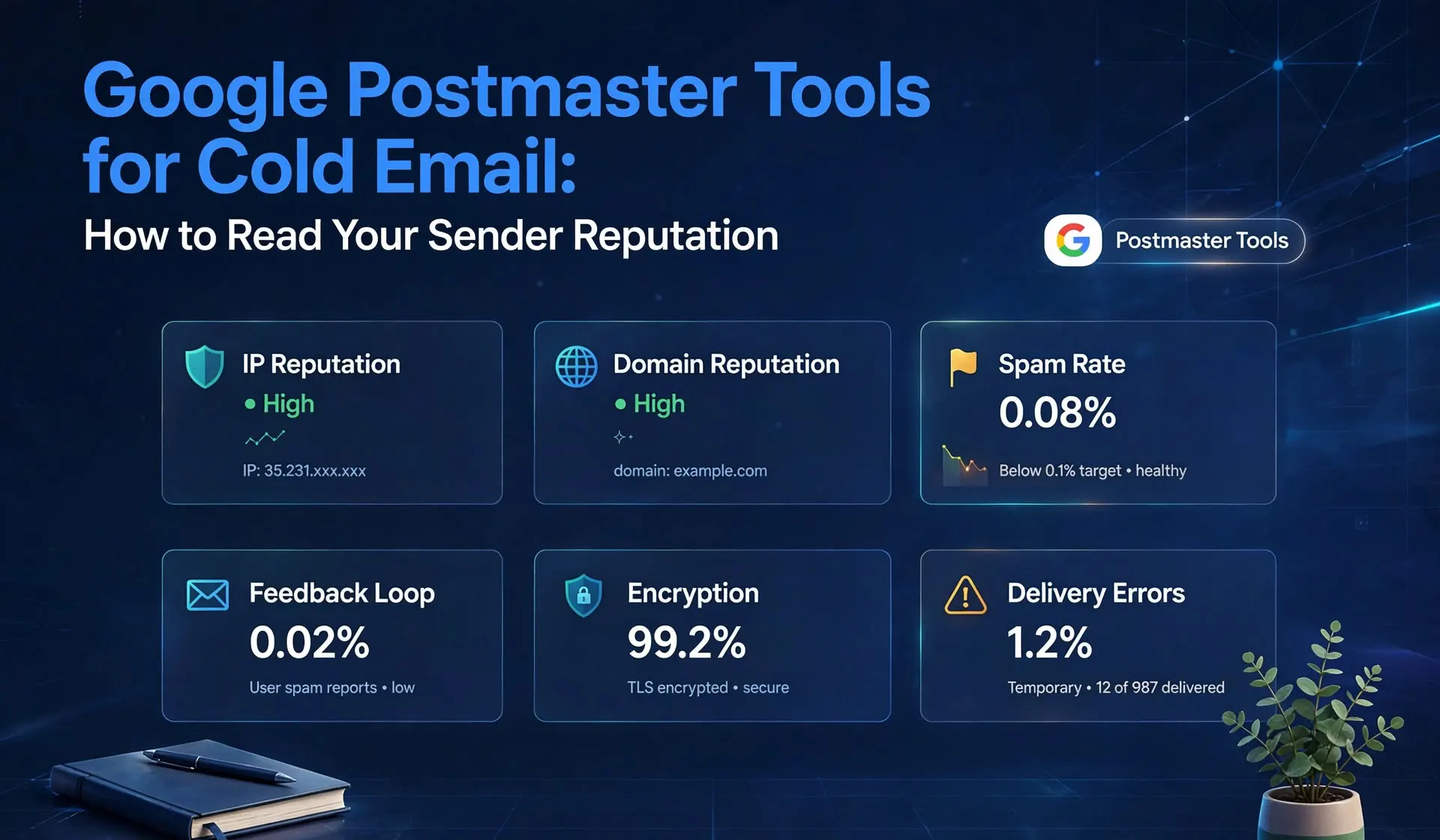
- Postmaster Tools reports on mail sent to personal Gmail accounts, so B2B campaigns that mostly reach Google Workspace and Microsoft 365 domains often produce little or no data
- Dashboards need meaningful daily volume, with one source saying up to the order of hundreds of messages, and low-volume data can be hidden for privacy
- The spam rate and feedback loop dashboards only count DKIM-authenticated mail
- Google defines the user-reported spam rate as the share of DKIM-authenticated messages delivered to engaged recipients' inboxes that users mark as spam
- Mail delivered straight to the spam folder is not counted, so a low spam rate can hide a placement problem
- Google asks senders to stay below 0.10% and never reach 0.30%
- The current Postmaster Tools has retired the Domain Reputation and IP Reputation charts, so reputation checks now rely on spam rate, compliance, authentication, and delivery errors
Google Postmaster Tools is the closest thing Gmail offers to a window into how it sees your sending domain. For newsletter senders and large marketing programs, it is essential. For cold email teams, it is useful and frustrating in equal measure. The dashboards are free and authoritative, but they often show nothing at all for small, spread-out sending programs, and the tool has changed a lot in the past year. This guide explains how to use Google Postmaster Tools for cold email. It covers what the tool measures, why cold senders often see empty dashboards, how to set it up, how to read the spam rate and compliance status, and how to run a domain reputation check now that Google has retired the old reputation charts. It also shows how to monitor sender reputation beyond Gmail, so you are never relying on a single dashboard. By the end, you will have a weekly routine that works whether or not Postmaster Tools shows data.
Key Terms Before You Open the Dashboard
Google Postmaster Tools is a free Google service that shows sender-level data about mail delivered to personal Gmail accounts. The user-reported spam rate is the percentage of eligible inbox messages that recipients mark as spam. DKIM-authenticated mail is mail with a valid DKIM signature, which Postmaster Tools needs for several dashboards. Compliance status is a dashboard that checks whether a domain meets Gmail's sender requirements. Delivery errors are the share of authenticated mail that Gmail rejected or temporarily failed, with reasons. A feedback loop is a mechanism that reports spam complaints back to a sender using an identifier in the message. Domain verification is the step that proves you control a domain, usually with a DNS record. These terms matter because each dashboard has conditions. A chart that is empty may mean no problem, no data, or no DKIM signature, and you need to know which.
What Is Google Postmaster Tools, and Does It Work for Cold Email?
Google Postmaster Tools shows how Gmail sees your sending domain, but it only covers mail sent to personal Gmail accounts, so cold email programs that target business domains may see little data.
Postmaster Tools gives domain owners dashboards for authentication, encryption, user-reported spam, delivery errors, and compliance. The data comes from real traffic to personal Gmail users. Google's sender requirements, and the enforcement behind them, also apply to personal Gmail accounts, not to Google Workspace recipients, according to Google's FAQ as summarized by deliverability trackers. That scope is the main reason cold emailers are disappointed. If your list is built from company email addresses on Google Workspace or Microsoft 365, most of your mail does not feed these dashboards. You will see data only for the share of your list that uses personal Gmail addresses, and only if you send enough of it.
The volume and DKIM conditions
Several conditions apply to what you see. Most dashboards show data only when daily volume from your authenticating domain reaches a sizable level, which one university guide describes as up to the order of hundreds of messages. Google can suppress low-volume days to protect user privacy. Spam rate and feedback loop dashboards need your mail to be DKIM-authenticated. Data is not real time, and it covers about the past 120 days. If you add several domains, you view them one at a time. For a cold email setup, that means a single domain sending 30 messages a day across several mailboxes will often show nothing. Do not read an empty dashboard as good news. Treat it as unknown.
How to Set Up Google Postmaster Tools for Cold Email
To set up Postmaster Tools, sign in with a Google account, add each sending domain, verify ownership with the DNS record Google provides, and confirm that your mail is DKIM-signed with that domain.
Go to Postmaster Tools, sign in with a Google account that you will keep long term, and choose to add a domain. Enter the domain you send from. Google gives you a DNS record to prove ownership, typically a TXT record, which you add in your DNS provider. After the record propagates, return and click verify. Repeat the process for every sending domain, because domains are added one at a time, and data is shown one domain at a time. Confirm that your mail is signed with DKIM using the same domain, because the spam rate and feedback loop dashboards depend on it. Check authentication in the headers of a test message. Icemail's guide on how email volume affects domain reputation explains why volume per domain matters before data appears. Add the primary domain as well as any subdomains you send from. The compliance dashboard reports on the primary domain, though it uses information from subdomains to make its decision. Keep the account that owns the Postmaster Tools properties in a shared team login or a documented process, so you do not lose access if a person leaves.
What Changed: The Reputation Charts Are Gone
For years, Postmaster Tools showed a Domain Reputation chart and an IP Reputation chart with ratings from bad to high. Google has been retiring that interface. Deliverability sources and Google API documentation summaries report that the Domain and IP Reputation dashboards are discontinued, that the older version of the API is deprecated, and that the new version centers on a Compliance status dashboard, user-reported spam rate, authentication, encryption, and delivery errors. One detail is worth noticing. Google's delivery error reasons in the newer API still include low domain reputation, low IP reputation, and IP listed on blocklists. Gmail still evaluates reputation internally, and it simply no longer shows you a score. If your internal documents still reference high, medium, low, and bad ratings, update them. Your reputation check now has to combine several signals, as covered below.
How to Read the Compliance Status Dashboard
The Compliance status dashboard tells you whether your primary domain meets Gmail's sender requirements, based on real traffic to personal Gmail accounts, and it is the headline view in the current Postmaster Tools. It checks the items in Google's sender guidelines. Those include SPF and DKIM authentication, alignment of the From header with those domains, DMARC, encryption, valid DNS records, and the user-reported spam rate, where the current threshold is 0.3% and senders should aim to stay under 0.1%. For bulk senders, it also covers unsubscribe controls. The dashboard shows a pass or needs-work style result for each requirement, so you can see which one fails. Use it as a checklist. If a requirement fails, fix that item first. If the dashboard shows no data, it may be because you do not send enough volume to personal Gmail accounts, and you should check the same requirements by hand with a header test and DNS checkers. Icemail's explanation of how to read email headers to verify SPF, DKIM, and DMARC shows how, and the Gmail and Yahoo bulk sender requirements overview of DMARC policies helps with the policy side.
Gmail Spam Rate Monitoring
Gmail spam rate monitoring means watching the daily user-reported spam rate, keeping it below 0.10%, and treating 0.30% as a hard ceiling.
Google defines the spam rate as the percentage of DKIM-authenticated messages delivered to engaged recipients' personal Gmail inboxes that those recipients manually mark as spam. The calculation uses messages delivered to the inbox as its base, which makes it narrower than your total send count.
The numbers in plain terms
One spam report in 1,000 eligible messages is 0.10%, and three in 1,000 is 0.30%. If 2,000 eligible messages reach Gmail inboxes in a day, 2 reports hit 0.10% and 6 hit 0.30%. Google says a bulk sender above 0.30% becomes ineligible for mitigation until the rate stays below 0.30% for seven consecutive days, and that Gmail enforcement has been ramping up since November 2025.
The blind spot to remember
Mail that Gmail delivers straight to the spam folder is not counted, and neither is mail that was never delivered. If most of your messages go to spam, fewer people see them in the inbox, so the spam rate can look low while your placement is poor. Practitioners warn about this directly. A low spam rate means few people who saw your message complained. It does not prove that most people saw it.
How to respond to changes
Check the chart daily during a ramp-up and weekly otherwise. Look for trends rather than single days, because the data lags and can be backfilled. If the rate rises, pause the segment, mailbox, or campaign that correlates with the increase. Review the targeting and message, remove risky contacts, and make opting out easier. Then watch whether the rate falls over the next several days. Icemail's guide on how to track and resolve spam complaints explains how to find the source.
Authentication, Encryption, and Delivery Errors
Three other dashboards add detail. The authentication dashboard reports the share of mail that passed SPF, DKIM, and DMARC, and a drop usually points to a DNS change, a new sending source, or a misconfigured platform. The encryption dashboard reports the share of mail sent over TLS, which should be at or near 100 percent for native mailboxes. The delivery errors dashboard shows the share of authenticated mail that Gmail rejected or temporarily failed, with reasons. Read the reason, not only the rate. A rise in temporary failures tells you Gmail is rate-limiting you, and a rise in permanent failures tells you it is rejecting you. The listed reasons include missing or bad PTR records, blocklisted IPs, low domain or IP reputation, and spammy content. The feedback loop dashboard is different. It works only if your sending system adds a feedback identifier to messages and you have enough volume. Most cold email platforms do not add it by default, so expect this dashboard to stay empty unless you configure it.
How to Run a Domain Reputation Check Without Reputation Scores
A domain reputation check now means combining several signals into one picture, because no single score exists any more.
Use the following signals together, and compare them over several days. First, check the spam rate trend and the compliance status in Postmaster Tools, if data exists. Second, check delivery errors for rate-limiting or rejection reasons. Third, run blocklist checks on your sending domain, and on any dedicated IPs. Icemail's overview of the top tools for monitoring domain blacklists lists options for ongoing monitoring. Fourth, run a seed list or inbox placement test across Gmail, Outlook, and Yahoo to see where mail lands. Fifth, compare reply rates and bounce rates by recipient provider, because a Gmail reply rate far below your Microsoft reply rate suggests a Gmail problem. Sixth, review complaints and unsubscribe rates by campaign. When several signals move in the same direction, you have a real problem. When only one moves, investigate before reacting. Research on how providers use spam reports in filtering (available at - https://doi.org/10.1145/1416950.1416953) describes systems that weigh the reliability of reporters and look for patterns, which is a reminder that your recipients' behavior feeds filtering decisions in ways you cannot see directly.
How to Monitor Sender Reputation Beyond Gmail
Gmail is only one of the providers your prospects use. A solid monitoring plan covers the others. For Yahoo, sign up for the complaint feedback loop in Yahoo's Sender Hub if you send meaningful volume to Yahoo addresses, and follow its requirements on authentication, a spam rate below 0.3%, and one-click unsubscribe for bulk senders. For Microsoft, Outlook.com consumer addresses have enforced authentication rules since May 2025 for high-volume senders, and Microsoft offers data programs for senders that use dedicated IP addresses, such as its network data service and junk mail reporting program. If you send only through native Microsoft 365 mailboxes, most network-level data belongs to Microsoft, so rely more on placement tests and outcome signals. Across all providers, watch the same fundamentals. Track hard and soft bounce rates and read the codes. Track complaints and unsubscribes by campaign. Test placement before every launch and after every change. Keep a log of changes to domains, mailboxes, volume, copy, and links, so you can match a drop to its likely cause. Icemail's overview of infrastructure monitoring tools describes tools that automate parts of this.
A Weekly Postmaster Tools Routine for Cold Email Teams
Start each week with the compliance status of every verified domain. Note any requirement that fails and fix it. Check the spam rate chart for each domain with data, and compare it with the previous week. Check delivery errors for rate limiting or rejections. Check authentication pass rates after any DNS or platform change. Then check your other signals: blocklists, placement test results, and reply and bounce rates by provider. Record the results in a simple log. If any signal worsens, pause the affected mailbox or segment, fix the cause, and recheck in a few days. If no dashboard shows data, say so in the log, and rely on the other signals, because an empty chart is not an all-clear.
Common Mistakes When Using Postmaster Tools for Cold Email
The first mistake is treating an empty dashboard as proof that everything is fine. The second is forgetting that the data covers personal Gmail accounts, not business domains. The third is sending mail without a DKIM signature that matches the domain, which hides spam data. The fourth is trusting a low spam rate while mail is going to spam. The fifth is looking for the old reputation charts and drawing conclusions from outdated guides. The sixth is verifying only one domain while sending from many. The seventh is reacting to one day of data. Each is avoidable with a documented routine.
Final Verdict
Google Postmaster Tools is worth setting up for every cold email domain, because when it shows data, it is the most authoritative view of how Gmail users react to your mail. It is not a complete answer for cold email, though. It covers personal Gmail accounts, it needs volume and DKIM, it hides low-volume days, and it no longer shows reputation scores. Use it as one input in a broader reputation check. Combine its spam rate and compliance data with delivery errors, blocklist checks, placement tests, and reply and bounce data by provider. Keep a log, review it weekly, and pause quickly when signals worsen. That approach gives you a clear view of your sender reputation whether or not a dashboard lights up. Frequently Asked Questions
Does Google Postmaster Tools work for cold email?
It works, but with limits. Postmaster Tools reports on mail sent to personal Gmail accounts, needs meaningful daily volume, and requires DKIM-authenticated mail for the spam rate. Cold email programs that mostly target business domains may see little or no data, so pair it with placement tests, bounce codes, and reply data.
Why is my Google Postmaster Tools dashboard empty?
The usual reasons are too little daily volume to personal Gmail accounts, mail that is not DKIM-signed with your domain, privacy filtering of low-volume days, or a recent setup, because data is not real time. An empty dashboard means unknown, not healthy, so check authentication in message headers and use other signals.
What is a good spam rate in Google Postmaster Tools?
Google asks senders to keep the user-reported spam rate below 0.10% and never reach 0.30%. One spam report in 1,000 eligible messages is 0.10%, and three in 1,000 is 0.30%. Because the rate counts only DKIM-authenticated inbox mail, a low number does not prove that your mail is reaching the inbox.
Is domain reputation still available in Postmaster Tools?
Deliverability sources report that Google has retired the Domain Reputation and IP Reputation dashboards in the current Postmaster Tools. Gmail still evaluates reputation internally, so do a domain reputation check using spam rate, compliance status, delivery errors, blocklist checks, placement tests, and reply rates by provider.
How do I monitor sender reputation beyond Gmail?
Use Yahoo's complaint feedback loop and sender requirements, Microsoft's data programs if you use dedicated IPs, blocklist monitoring, seed list placement tests, bounce code logs, and reply rates by provider. Keep a change log and review the signals weekly so you can tie a drop to its likely cause.