



How to Reset Office 365 MFA Settings
Resetting Multi-Factor Authentication (MFA) in Office 365 is essential when users lose access to their authentication methods, such as a phone or app, or when admins need to enforce new security policies. Here's the process in simple steps:
- For End Users: Visit mysignins.microsoft.com/security-info to manage your MFA settings. Add new methods, update phone numbers, or remove outdated devices. If you're locked out, click "Sign in another way" or contact your admin.
- For Admins: Use the Microsoft 365 Admin Center, Entra Admin Center, or PowerShell for resets. Revoke active sessions and require users to re-register their MFA methods. In cases of lost access, issue a Temporary Access Pass (TAP) for quick recovery.
- Avoid Disruptions: Plan resets during low-traffic times, pause email campaigns, and ensure connected tools are updated to avoid interruptions.
Key Tip: Always verify user identity before resetting MFA. For emergencies, keep a "break-glass" admin account exempt from MFA policies.
This guide ensures secure resets and minimizes downtime for both users and admins.
Locked Out? How to Reset Multifactor Authentication for Microsoft 365 users
Preparing for an MFA Reset
A little preparation can save a lot of headaches. Whether you're an IT admin or an end user, having the right information ready can streamline the MFA reset process and minimize disruptions.
Verify Permissions and Access
Before resetting someone else's MFA, make sure you have the right permissions. The roles that allow MFA resets include Global Administrator, Authentication Administrator, or Privileged Authentication Administrator. While Authentication Administrators can handle resets for standard users, resetting MFA for another admin generally requires either a Privileged Authentication Administrator or a Global Administrator.
To check your role, log in to the Microsoft Entra Admin Center. Go to Identity > Users > All Users, select your account, and click on Assigned roles to confirm your permissions.
"Only users with administrative privileges can perform MFA resets. Typically, you'll need to be a Global Administrator, Authentication Administrator, or Privileged Authentication Administrator." - Salaudeen Rajack, IT Expert
Gather Necessary Information
Before starting the reset, collect all the key details about the account. At a minimum, you'll need the user's User Principal Name (UPN), their current authentication methods (like Microsoft Authenticator, SMS, OATH hardware token, or FIDO2 key), and their account type (standard user, guest, or administrator). If the reset is due to a security issue, document the reason and prepare to revoke active sessions while clearing out existing MFA methods.
To prevent unauthorized resets, confirm the user's identity. A quick phone call or confirmation from their manager can help ensure the request is legitimate.
"Confirm the user's identity to avoid unauthorized resets. I typically call the user at their office phone or check with their manager." - Salaudeen Rajack, IT Expert
Once you've gathered all the necessary details, assess any systems that might be affected by the reset.
Coordinate with Connected Tools
An MFA reset can disrupt access to email clients, third-party apps, and tools that rely on app passwords for older authentication methods. Revoking sessions during the reset invalidates all active refresh tokens, which means users will need to re-authenticate on platforms like Outlook and Teams.
To minimize disruptions, schedule resets for low-traffic times and pause any automated communication campaigns. Audit any non-browser apps that use app passwords, as these credentials will need to be recreated after the reset. Afterward, provide users with a simple checklist to clear their browser cache and remove old credentials from Windows Credential Manager or macOS Keychain. This prevents issues caused by outdated tokens.
"Every organization should keep a 'break-glass' account - one that's exempt from MFA and Conditional Access. This account can log in when everything else fails." - M365.fm
Having a break-glass account is an essential safety net. It ensures that admins can still access critical systems, even if an MFA reset temporarily disrupts all other login paths.
How to Reset MFA as an End User
If you're an end user looking to reset your Multi-Factor Authentication (MFA) settings, here's how you can do it. These steps work if you can complete at least one sign-in step.
Access Your Security Info
Start by visiting mysignins.microsoft.com/security-info. This is where you can manage your MFA settings and review your linked authentication methods.
"With two-step verification, you always need two forms of identification. This means that if you lose your phone, your password alone won't get you back into your account. For that reason, we strongly recommend you have three different sign-in methods associated with your account." - Microsoft Support
Replace or Update MFA Methods
Once you're ready, follow these steps to adjust your MFA settings:
-
Adding a new method: Click + Add sign-in method, select your preferred option (e.g., Microsoft Authenticator app, phone number, or FIDO2 security key), and follow the prompts to verify and complete the setup. If you're switching phones, make sure to add the new device before wiping or trading in the old one to avoid access issues.
-
Updating an existing method: Locate the method you'd like to update, click Change, input the new information (like a phone number), and verify that it's working properly.
-
Removing an old method: Once you've set up and confirmed a replacement, click Delete next to the outdated method.
Here's a quick reference table to guide you:
| Action | Where to Find It | When to Use It |
|---|---|---|
| Add a new device or app | + Add sign-in method | When adding a backup or setting up a new phone |
| Update a phone number | Change (next to Phone) | If your number changes or your SIM is replaced |
| Remove an old method | Delete | When a device is lost, replaced, or no longer used |
| Change default method | Change (next to Default) | To switch from SMS to the Authenticator app, etc. |
If you're unable to complete these steps, you may need to get in touch with your admin.
When to Contact an Admin
Sometimes, you might find yourself locked out, especially if the MFA prompt is asking for a code from an app you no longer have access to and there's no backup method.
Before reaching out to IT, try clicking "Sign in another way" on the MFA prompt. This might allow you to use an alternative method, like a text message or a call to your office phone, to regain access. If this works, update your Security Info immediately to avoid future issues.
If "Sign in another way" doesn't provide any usable options, contact your IT help desk. Ask them to "Require re-register multifactor authentication" for your account. This action will clear your old methods and let you set up MFA again during your next login.
"End users cannot break this loop themselves once they lose access to the old Authenticator. An IT admin must reset MFA." - Microsoft Q&A
For admins who are locked out, reach out to another Global Administrator in your organization. If you're the sole admin, Microsoft's Data Protection team can assist via phone support.
How to Reset MFA as an Admin
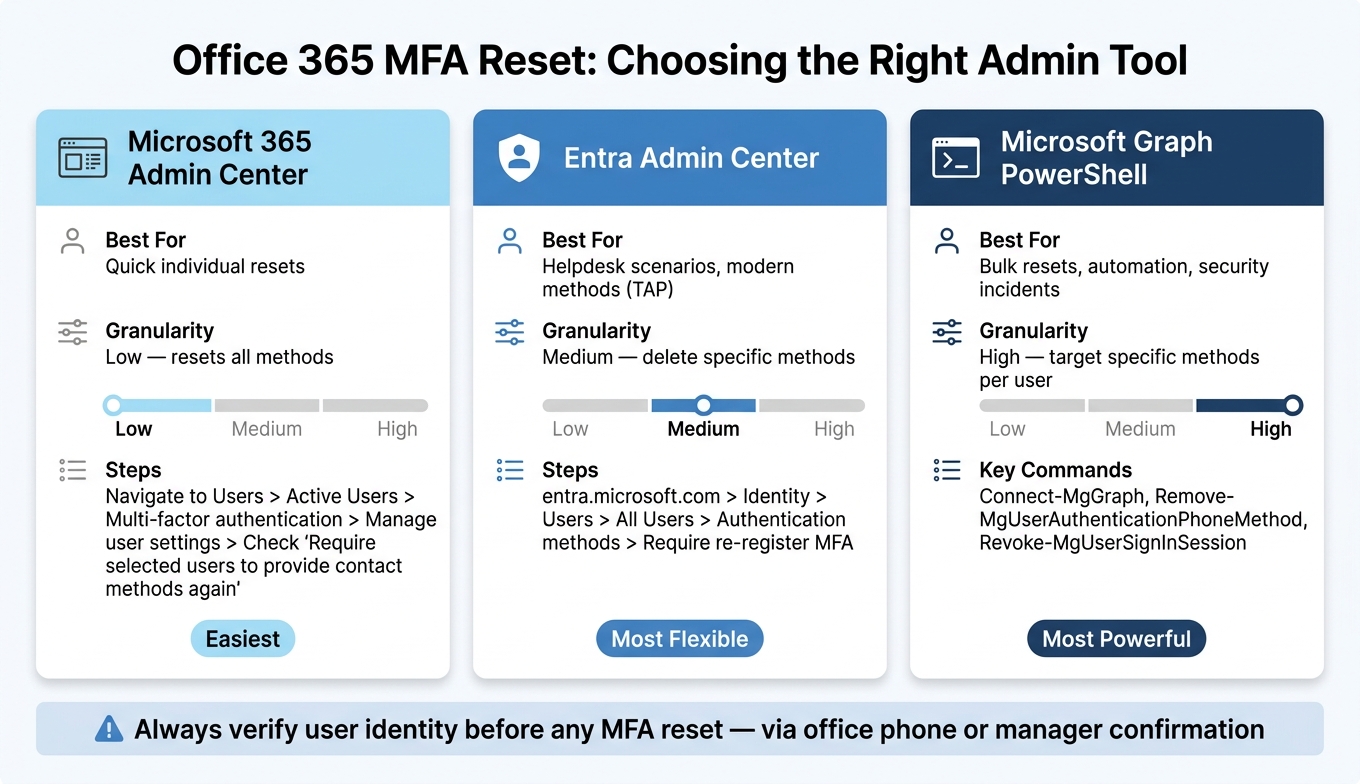
Admins managing Office 365 MFA resets have three main options: the Microsoft 365 Admin Center, the Entra Admin Center, or Microsoft Graph PowerShell. Each method caters to different levels of control and scope, ensuring secure and efficient management of multi-factor authentication.
Using the Microsoft 365 Admin Center
For quick, individual MFA resets, the Microsoft 365 Admin Center is the go-to tool. Here's how to do it:
- Navigate to Users > Active users.
- Select the user in question and click Multi-factor authentication (found under "More actions" or the top navigation bar).
- In the new window, select the user again and choose Manage user settings from the right-hand menu.
- Check the option for Require selected users to provide contact methods again and hit Save.
After this, the user will need to re-register their MFA methods during their next login.
Using the Entra Admin Center
The Entra Admin Center offers more precise control, especially for managing authentication methods. To reset MFA here:
- Log in at entra.microsoft.com.
- Go to Identity > Users > All users.
- Search for and select the user, then open Authentication methods from the left menu.
- Click Require re-register multifactor authentication in the top toolbar.
You'll see this confirmation message:
"This will deactivate hardware OATH tokens and delete the following authentication methods from this user: phone numbers, Microsoft Authenticator apps and software OATH tokens. Are you sure you want to proceed?" - Microsoft Entra Admin Center Prompt
Confirm to wipe the user's existing methods. If the user has lost access to all registered devices, you can also issue a Temporary Access Pass (TAP), a time-limited one-time passcode.
Using Microsoft Graph PowerShell
For bulk resets or detailed control, PowerShell is the most powerful tool. Begin by connecting with the proper scopes:
Connect-MgGraph -Scopes "UserAuthenticationMethod.ReadWrite.All"
To remove a specific authentication method, like a phone number, use:
Remove-MgUserAuthenticationPhoneMethod -UserId <UserUPN> -PhoneAuthenticationMethodId <MethodID>
For a complete reset, loop through all MgUserAuthenticationMethod entries and remove them. Once a reset is complete, always execute:
Revoke-MgUserSignInSession
This ensures all active refresh tokens are invalidated, forcing the user to re-authenticate across all devices.
Choosing the Right Tool
Here's a quick comparison to help you decide which method to use:
| Tool | Best For | Granularity |
|---|---|---|
| M365 Admin Center | Quick individual resets | Low - resets all methods |
| Entra Admin Center | Helpdesk scenarios, modern methods (TAP) | Medium - delete specific methods |
| Microsoft Graph PowerShell | Bulk resets, automation, security incidents | High - target specific methods per user |
Before initiating any reset, always verify the user's identity through office phone confirmation or managerial approval to prevent unauthorized changes.
Next, we'll explore how to confirm the reset and troubleshoot common issues.
Post-Reset Verification and Troubleshooting
After resetting MFA, whether you're an admin or an end user, verifying the reset right away is crucial to ensure uninterrupted access.
Verify the MFA Reset Worked
To confirm the reset, check both the Authentication methods section and the sign-in logs in the Entra Admin Center. If the reset worked, you'll notice that previous phone numbers, Microsoft Authenticator registrations, and software OATH tokens are completely cleared.
The Entra sign-in logs are a reliable way to confirm this. Look for error code 50079, which indicates the user is being prompted to re-register for MFA. As M365 Security Specialist Daniel Okonkwo explains:
"The Entra sign-in logs are honestly your best friend when troubleshooting MFA... it shows exactly which MFA method was attempted and why it failed."
Users will encounter a "More information required" prompt during their next login or can visit aka.ms/mysecurityinfo to confirm that all previous methods have been removed.
Check Access to Office 365 Applications
After the reset, ask the user to sign into key Office 365 applications such as Outlook, Teams, or SharePoint to confirm access. If the MFA prompt doesn't appear or the user gets through without needing to re-register, a stale browser session might be the issue. Instruct the user to open an InPrivate or Incognito browser window, which bypasses cached authentication cookies.
Fix Common Post-Reset Issues
Some recurring problems tend to arise after an MFA reset. Here's a quick guide to identifying and resolving them:
-
MFA loops: If a user completes the MFA prompt but is asked to do it again immediately, this might be caused by conflicting Conditional Access policies or expired refresh tokens. Use the "Revoke multifactor authentication sessions" option in the Entra Admin Center to reset the authentication flow.
-
Rejected TOTP codes: These failures are often due to time synchronization issues. Since six-digit codes are only valid for 30 seconds, even slight clock drift on the user's device can cause problems. Ensure the device is set to "Set Date and Time Automatically".
-
Push notification failures: On Android devices, the Microsoft Authenticator app might stop working if the operating system closes it in the background. To prevent this, set the app to "Not Optimized" in the device's battery settings.
Here's a quick reference for common Entra error codes and how to address them:
| Error Code | Meaning | Action |
|---|---|---|
| 50079 | User must register for MFA | Reset confirmed; direct user to aka.ms/mysecurityinfo |
| 50076 | User didn't pass MFA challenge | Check device connectivity or notification settings |
| 53003 | Access blocked by Conditional Access | Review policy exclusions or trusted location settings |
| 500121 | Authentication failed during request | Re-add the account in Authenticator and clear app cache |
| 0x800434D4L | Non-browser app failure | Use app passwords if legacy authentication is enabled |
One step that's often overlooked: after resetting MFA, admins should delete all existing app passwords. Legacy applications that rely on these passwords will continue to fail silently until new ones are generated.
Managing Cold Email Infrastructure with Icemail.ai

Keeping cold email operations running smoothly is crucial, especially when dealing with MFA resets. These resets, while necessary for security, can disrupt Microsoft 365 campaigns by requiring quick re-authentication and app password updates. This can delay SMTP reconnections and stall campaigns. To avoid prolonged downtime, having clear reset procedures and using the right tools is essential. One such tool is Icemail.ai, which helps streamline mailbox management and ensures campaigns stay on track.
Why Icemail.ai Stands Out from Competitors
Icemail.ai has helped set up over 250,000 mailboxes and facilitated 28,000+ domain purchases. Compared to Zapmail.ai, Icemail.ai offers better pricing, faster setup, and a more comprehensive feature set.
| Feature | Icemail.ai | Zapmail.ai |
|---|---|---|
| Pricing | $2.5/mailbox/month | $3.90/month per mailbox |
| Setup Time | 10–30 minutes | 3–4 days |
| Mailbox Replacements | Unlimited & free | Additional cost |
| Workspace Isolation | Dedicated per domain | Not offered |
| Unified Inbox | Included | Not offered |
Unlike Zapmail.ai, Icemail.ai provides unlimited free mailbox replacements and dedicated workspace isolation - features that are especially useful when handling MFA resets or replacing compromised accounts.
"Switching to icemail.io was a game-changer for my agency. The platform simplifies domain and mailbox management, and the bulk export to cold email tools saved me significant time." - James Thomas, Agency Owner
Icemail.ai has earned a 4.2/5 rating based on verified reviews, with users frequently highlighting its weekend support and ease of integration with outreach tools.
Automated Mailbox Onboarding in 10 Minutes
Reconfiguring SPF, DKIM, and DMARC after an MFA reset can be a tedious process. Icemail.ai simplifies this by automating DNS record setup, completing the process in just 10–30 minutes. For teams managing multiple domains, its bulk tools make it easy to update mailbox settings quickly. Once everything is configured, you can use a 1-click export to send credentials directly to platforms like Smartlead, Instantly, or ReachInbox - eliminating the need for manual CSV uploads.
"icemail.io has transformed how I manage my email infrastructure. The automated setup for Google Workspace accounts, including DKIM, SPF, and DMARC configuration, saved me hours of work." - Suprava Sabat, AcquisitionX
Affordable and Scalable Mailbox Plans
Icemail.ai offers Microsoft 365 mailboxes starting at $2.5/mailbox/month, with pre-warmed mailboxes available for $5/month. The platform operates on a pay-as-you-go basis, with no long-term contracts. For agencies managing large-scale outreach, Icemail.ai delivers a 91–94% primary inbox placement rate for corporate Outlook recipients and boasts an overall 99.2% inbox delivery rate across its US-IP infrastructure. This makes it a reliable choice for teams that need to recover quickly from MFA resets without compromising email performance.
Conclusion
Resetting Office 365 MFA doesn't have to be complicated. Whether you're an end user managing a lost device or an admin handling outdated authentication methods, the steps are straightforward and effective.
Key Takeaways
Here are the main points to remember:
- End users can update their settings independently through the Security Info page, provided they still have access to at least one working verification method.
- Admins should always revoke active sessions alongside an MFA reset. Skipping this step often leads to persistent MFA loops due to cached tokens.
- Break-glass accounts are critical for uninterrupted access. Keep at least one emergency admin account exempt from MFA and Conditional Access policies to avoid unnecessary downtime or reliance on Microsoft's Data Protection team.
- For bulk resets or automation, Microsoft Graph PowerShell is the best tool for managing tasks like guest accounts or licensed user groups efficiently.
These steps not only enhance account security but also help maintain smooth email operations.
If your team depends on Microsoft 365 for cold email outreach, MFA disruptions can lead to delays. Tools like Icemail.ai can minimize these risks by offering automated DNS setup and pre-warmed mailboxes starting at $2.5/mailbox/month. With faster setup times and excellent reviews, it's a strong alternative to competitors like Zapmail.ai. Even during temporary MFA-related downtime, Icemail.ai helps ensure minimal impact on your workflow.
Related reading
- troubleshooting Office 365 SMTP and legacy authentication
- common causes for Office 365 delivery failure
- Google Workspace vs Microsoft 365 for outreach
- preventing duplicate mailbox rules in Outlook
- ultimate guide to Outlook sync troubleshooting
- essential email authentication methods explained
- how to fix email quota exceeded errors
Frequently asked questions
How do I reset my Office 365 MFA if I lost access to my authentication app?+
Visit mysignins.microsoft.com/security-info and click 'Sign in another way' to use an alternative method like SMS or phone call. If no backup methods work, contact your IT administrator to request an MFA reset. They can require re-registration through the admin center, allowing you to set up new authentication methods on your next login.
What admin permissions are needed to reset MFA for Office 365 users?+
You need Global Administrator, Authentication Administrator, or Privileged Authentication Administrator roles. Authentication Administrators can reset MFA for standard users, but resetting another admin's MFA typically requires Privileged Authentication Administrator or Global Administrator permissions. Verify your role in the Microsoft Entra Admin Center under Identity > Users > Assigned roles.
Will resetting MFA log users out of all Office 365 applications?+
Yes, when you revoke MFA sessions during a reset, all active refresh tokens are invalidated. Users must re-authenticate across all devices and applications including Outlook, Teams, and SharePoint. App passwords for legacy applications will also stop working and need to be regenerated after the reset is complete.
How do I reset MFA for multiple Office 365 users at once?+
Use Microsoft Graph PowerShell for bulk MFA resets. Connect with 'Connect-MgGraph -Scopes UserAuthenticationMethod.ReadWrite.All', then loop through users to remove authentication methods. Always follow up with 'Revoke-MgUserSignInSession' to invalidate active tokens. This method is ideal for security incidents or managing large user groups efficiently.
What is a Temporary Access Pass and when should I use it?+
A Temporary Access Pass (TAP) is a time-limited one-time passcode issued through the Entra Admin Center when users lose access to all registered MFA devices. It allows users to sign in and re-register their authentication methods. TAPs are ideal for emergency access scenarios and can be issued by Authentication Administrators or higher-level admins.
Why does Office 365 keep asking for MFA after I already completed it?+
MFA loops typically occur due to conflicting Conditional Access policies, expired refresh tokens, or stale browser sessions. Use the 'Revoke multifactor authentication sessions' option in the Entra Admin Center to reset the authentication flow. Try signing in through an InPrivate or Incognito browser window to bypass cached authentication cookies.
What is a break-glass account and why do I need one for Office 365?+
A break-glass account is an emergency admin account exempt from MFA and Conditional Access policies. It ensures administrators can access critical systems when all other login methods fail, such as during widespread MFA issues. Every organization should maintain at least one break-glass account with Global Administrator privileges for disaster recovery scenarios.