
Office 365 SMTP and Legacy Authentication Problems
If your app, script, printer, or scanner stopped sending mail through smtp.office365.com, the most common reason is simple: Microsoft shut off Basic Auth for SMTP AUTH on April 30, 2026. That means a correct username and password are no longer enough for many older setups.
Here’s the short version: if webmail works but SMTP fails, I’d check three things first:
- Tenant settings: Security Defaults, Conditional Access, and tenant SMTP AUTH settings
- Mailbox settings: whether SMTP AUTH is disabled for that mailbox, MFA status, and send blocks
- Device or app limits: TLS 1.2 support, port 587 access, and whether the device can use OAuth 2.0
Common SMTP errors usually point to the problem fast:
550 5.7.30= Basic Auth is blocked for Client Submission535 5.7.139= sign-in method is blocked or federation is failing535 5.7.3= MFA or policy is stopping the sign-in5.7.57= SMTP AUTH is off for that mailbox5.7.60= the account does not have permission to send as that address
In many cases, the fix is not a password reset. It’s one of these:
- Turn on SMTP AUTH for the mailbox if it was disabled
- Move from Basic Auth to OAuth 2.0
- Use SMTP Relay for older devices
- Use Direct Send for internal-only mail
- Update firmware or move the device if it only supports old TLS
A lot of devices broke because they were built around static username-and-password SMTP. After the April 30, 2026 cutoff, those setups started failing by design, not by accident. So if mail stopped sending around that time, I’d treat old auth as the first suspect.
This article walks through the checks in the right order so you can find the block and pick the sending method that still works.
How to Enable SMTP Authentication on Microsoft 365 [2026 Guide]
SMTP Failure Symptoms and the Legacy Authentication Root Cause
SMTP error codes usually point to a blocked sign-in method, not a bad mailbox. Start with the error code. In most cases, it tells you which layer is blocking the send.
Common Error Patterns in Office 365 SMTP
Once you line up the code with the message, SMTP failures get a lot less mysterious.
| Error Code | What It Says | Root Cause |
|---|---|---|
| 550 5.7.30 | Basic authentication is not supported for Client Submission | Basic Auth is permanently disabled for the tenant |
| 535 5.7.139 | Authentication unsuccessful | Basic Auth is disabled, or federated sign-in is unavailable |
| 535 5.7.3 | Authentication unsuccessful | MFA is enabled, or Security Defaults are blocking the sign-in |
| 5.7.57 | Client not authenticated to send mail | SMTP AUTH is disabled for that mailbox |
| 5.7.60 | Client does not have permissions to send as this sender | The sending account lacks "Send As" permissions |
Use the code to sort the problem into one of three buckets: tenant-wide, mailbox-level, or permission-related. That saves time and keeps you from changing the wrong setting.
If the issue started right after a policy change, check that first. Printers, scanners, and background scripts often don't show clear error alerts - they just stop sending. That makes the break look random when it isn't. Microsoft started phasing out Basic Auth submissions before full enforcement on April 30, 2026, so some orgs saw spotty failures before the final cutoff.
Why Valid Credentials Still Fail
This is the part that trips people up: the username and password can be correct, and the sign-in can still fail.
Basic Auth is a legacy sign-in method that can't get through modern Office 365 SMTP checks. Modern authentication, based on OAuth 2.0, uses short-lived access tokens instead of static passwords. Older devices usually hit a wall here because they can't use OAuth 2.0.
Security Defaults and Conditional Access can also block SMTP AUTH even when the mailbox credentials are valid. If Security Defaults are turned on in Microsoft Entra ID, SMTP AUTH is disabled across the entire tenant, not just for one mailbox. Conditional Access can block it too, even when SMTP AUTH is turned on at the mailbox level.
The next step is to check tenant, mailbox, and device settings before you change the app or printer.
Check Tenant, Mailbox, and Device Settings Before Making Changes
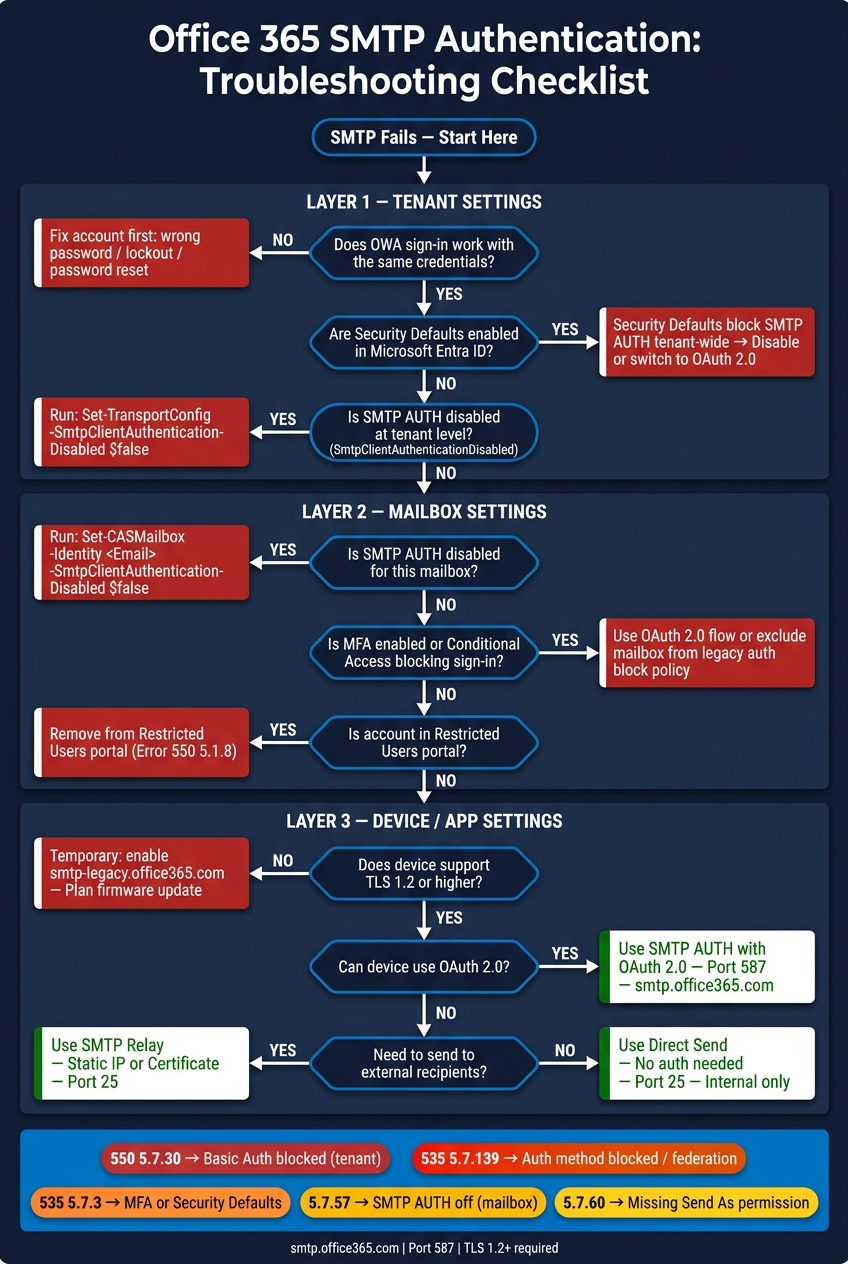
Check the tenant, then the mailbox, then the device. That order saves time and cuts down on random guesswork.
Verify SMTP AUTH and Account Status
Start with OWA. Sign in with the same credentials the app or device uses.
If OWA fails, fix the account first. In most cases, that means one of these:
- Wrong password
- Account lockout
- Password reset needed
If OWA works, the password is valid and the problem is tied to SMTP.
Next, check whether SMTP AUTH is turned on for that mailbox. Run this in PowerShell:
Get-CASMailbox -Identity <EmailAddress> | Format-List SmtpClientAuthenticationDisabled
If the result is False, SMTP AUTH is on. If it returns True, you've found the problem.
Also check the Restricted Users portal for send-blocked accounts. If Microsoft flagged the account for suspected spam, it may be blocked from sending altogether. That often shows up as error 550 5.1.8.
If the account is fine, move on to policy and device settings.
Review MFA, Security Defaults, and Conditional Access
Security Defaults turn off SMTP AUTH across the whole tenant.
So if the mailbox is active and the password works, policy is often the next thing in the way.
| Blocking Setting | Typical Error | Required Admin Action |
|---|---|---|
| Security Defaults | 535 5.7.139 Authentication unsuccessful | Disable Security Defaults or switch to OAuth |
| Per-Mailbox SMTP AUTH | 535 5.7.3 Authentication unsuccessful | Set SmtpClientAuthenticationDisabled to $false via PowerShell |
| Conditional Access | 5.7.57 Client not authenticated | Exclude the specific mailbox from policies blocking legacy authentication |
| MFA Enabled | 535 5.7.3 Authentication unsuccessful | Use a supported modern auth flow or an approved exception path; app passwords do not solve tenant-wide Basic Auth disablement |
| Restricted Users Portal | 550 5.1.8 Bad outbound sender | Remove the user from the Restricted Users portal |
Confirm TLS and App or Device Compatibility
If the account looks fine and policy isn't blocking sign-in, the device may be the issue.
Microsoft 365 requires TLS 1.2 or higher for all SMTP AUTH connections to smtp.office365.com.
Test port 587 from the same network. A 220 response means the server is reachable. No response usually points to a firewall or ISP blocking port 587.
For printers, scanners, and older apps, check the manufacturer's firmware release notes for TLS 1.2 support. Many printers and scanners can't use OAuth, so they need an SMTP option they can still work with.
If the tenant, mailbox, and device all check out, the next move is usually to switch the sender to a supported method.
How to Fix Office 365 SMTP Authentication Problems
Enable the Right Mailbox and Connection Settings
Mailbox settings override tenant settings. So even if SMTP AUTH is turned on across the tenant, it can still be off for one mailbox.
To enable it for a single account, run:
Set-CASMailbox -Identity <EmailAddress> -SmtpClientAuthenticationDisabled $false
If SMTP AUTH is also disabled at the tenant level, turn that on first:
Set-TransportConfig -SmtpClientAuthenticationDisabled $false
Then check the client settings. Use smtp.office365.com, port 587, and STARTTLS.
If the mailbox is set up right and the client still can't sign in, the issue may not be the mailbox at all. At that point, move to one of the supported send methods below.
Use a Supported Sending Method When Basic Auth Is Blocked
Once Basic Auth is blocked, the answer isn't another password reset. The answer is to switch to a send method Microsoft still allows.
Microsoft now rejects Basic Auth for SMTP AUTH Client Submission, which means password-based sending no longer works.
For modern apps, use OAuth 2.0 with Microsoft Entra ID. Register the app, grant SMTP.SendAsApp, and send with an OAuth token.
For older devices that can't use OAuth, SMTP relay is often the best fallback. You can set it up with a static IP or certificate. If you only need internal alerts and don't need authentication, Direct Send on port 25 is the simplest option.
| Method | Authentication | Port | Best For |
|---|---|---|---|
| SMTP AUTH (OAuth 2.0) | OAuth Token | 587 | Modern apps and updated MFPs |
| SMTP Relay | Static IP or Certificate | 25 | Legacy devices |
| Direct Send | None | 25 | Internal-only alerts |
Legacy TLS Edge Cases
Sometimes authentication is fixed, but the device still won't connect. When that happens, TLS support is often the next thing to check.
If the device only supports TLS 1.0 or TLS 1.1, use the legacy endpoint as a temporary bridge:
Set-TransportConfig -AllowLegacyTLSClients $true
Then point the device to smtp-legacy.office365.com instead of the standard endpoint.
Use this only as a temporary bridge.
Pick the Right Sending Method and Prevent the Problem from Returning
Authenticated SMTP vs. Direct Send vs. Relay
After you fix the login issue, the next step is simple: make sure you're using the right sending method for the job. If you pick the wrong one, the same failure can pop up again later.
| Method | Authentication | Recipients | Daily Limit | Best For |
|---|---|---|---|---|
| Authenticated SMTP (OAuth 2.0) | OAuth token | Internal & external | 10,000 recipients/day | Modern apps, scripts, updated MFPs |
| Direct Send | None | Internal only | Microsoft message limits | Simple MFP alerts, internal notifications |
| SMTP Relay (Connector) | Static IP or certificate | Internal & external | Connector limits | Legacy hardware, higher-volume needs |
Stick to one path and document it. That way, later policy changes are less likely to break mail flow.
Direct Send needs no license or authentication. It sends mail to the MX endpoint and works for internal-only delivery.
SMTP Relay is often the better fit for older hardware that can't use OAuth.
Steps to Avoid Repeat Failures
Once SMTP is working, lock down the sender path that matches the device and your policy setup.
A lot of these issues come back for one reason: no one owns the sender. A device gets configured, it runs fine for a while, and then a security policy changes a few weeks later. Suddenly, mail stops.
To avoid that, run the SMTP AUTH Clients Submission Report in the Exchange Admin Center (Reports > Mail flow) on a set schedule. It shows which accounts still try to use Basic Auth and which ones use OAuth.
Also, assign a named owner to every sending account. That person should handle:
- Token renewals
- Firmware updates
- Policy reviews
On the device side, use current firmware that supports OAuth 2.0. Also check for TLS 1.2 or 1.3 support across all systems that send mail.
Keep a central registry of every device, IP address, and application allowed to send email. Undocumented senders often cause surprise outages after tenant-wide security changes.
Summary
The fix comes down to matching the send method to the device and keeping clear ownership documented, so policy changes don't break a setup that was already working.
Related reading
Frequently asked questions
What does error 550 5.7.30 mean when sending email through Office 365 SMTP?+
Error 550 5.7.30 indicates that Basic Authentication is not supported for Client Submission in your Office 365 tenant. This means Microsoft has permanently disabled password-based SMTP AUTH, and you need to switch to OAuth 2.0, SMTP Relay, or Direct Send instead of using traditional username and password authentication.
How do I enable SMTP AUTH for a specific mailbox in Office 365?+
Run this PowerShell command: Set-CASMailbox -Identity <EmailAddress> -SmtpClientAuthenticationDisabled $false. If SMTP AUTH is also disabled tenant-wide, you'll need to enable it at that level first using: Set-TransportConfig -SmtpClientAuthenticationDisabled $false. Remember that Security Defaults can override these settings.
What are the alternatives to Basic Auth for Office 365 SMTP after April 2026?+
The three main alternatives are: OAuth 2.0 for modern apps and updated devices (port 587), SMTP Relay using static IP or certificate authentication (port 25) for legacy hardware, and Direct Send (port 25) for internal-only mail that requires no authentication. Choose based on your device capabilities and sending requirements.
Why does my printer or scanner fail to send email through smtp.office365.com?+
Most printers and scanners fail because they only support Basic Authentication with username and password, which Microsoft disabled on April 30, 2026. Additionally, many older devices lack TLS 1.2 support, which is required for Office 365 connections. You'll need to either update firmware to support OAuth 2.0 or switch to SMTP Relay or Direct Send.
How do Security Defaults affect SMTP authentication in Microsoft 365?+
Security Defaults automatically disable SMTP AUTH across your entire tenant, blocking all legacy authentication attempts. Even if SMTP AUTH is enabled at the mailbox level, Security Defaults will override that setting and cause authentication failures with errors like 535 5.7.139. You must either disable Security Defaults or migrate to OAuth 2.0.
What is the difference between SMTP Relay and Direct Send in Office 365?+
SMTP Relay requires authentication via static IP or certificate and can send to both internal and external recipients with connector-based limits. Direct Send requires no authentication, uses port 25, but only delivers to internal recipients within your organization. Direct Send is simpler for basic internal alerts, while SMTP Relay suits legacy devices needing external delivery.
How can I prevent Office 365 SMTP authentication problems from recurring?+
Run the SMTP AUTH Clients Submission Report regularly in Exchange Admin Center to monitor authentication methods. Assign a named owner to each sending account responsible for token renewals and policy reviews. Maintain a central registry of all devices and IPs authorized to send mail, and ensure all devices support TLS 1.2 and OAuth 2.0 where possible.