


Ultimate Guide to SMTP Error Resolution
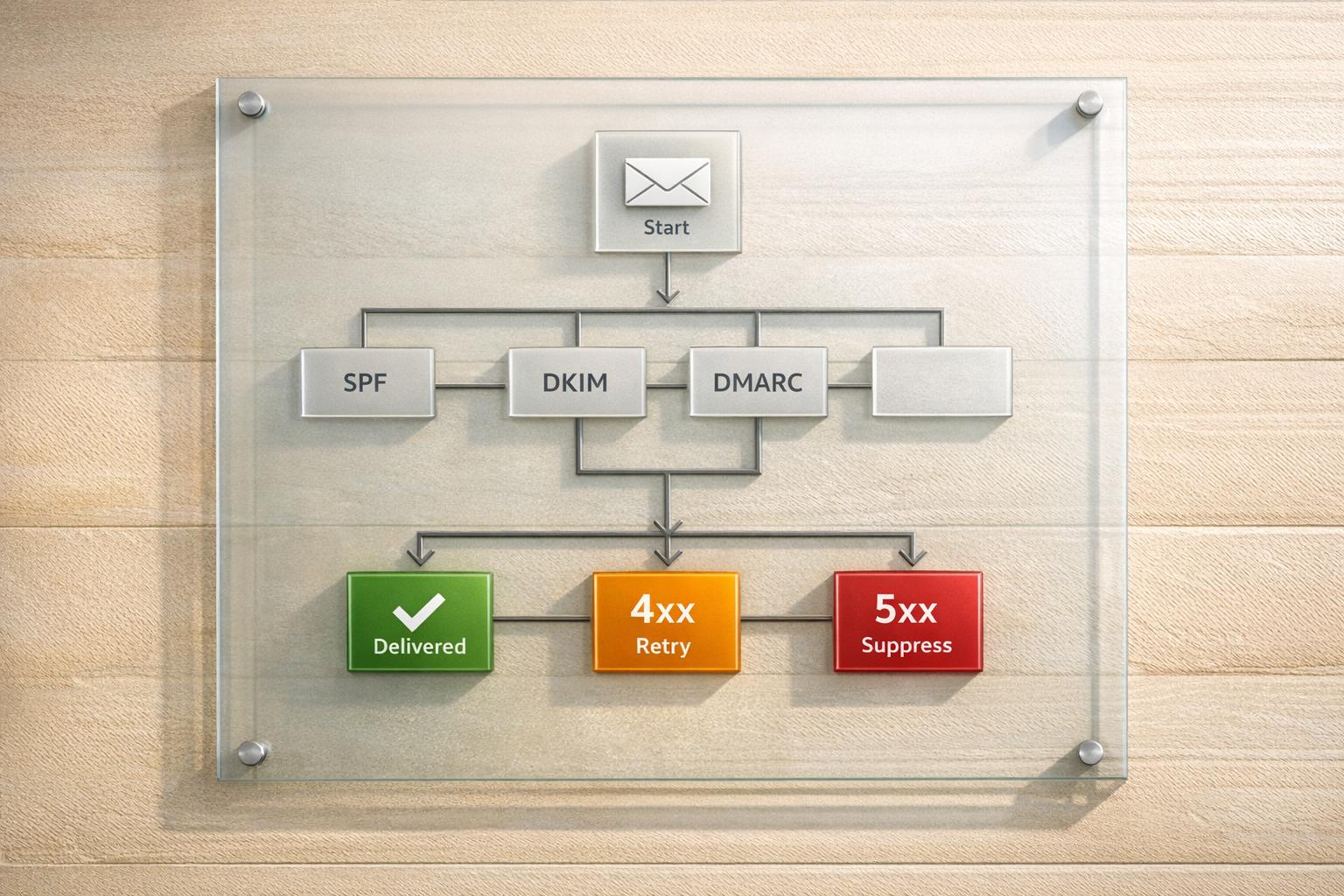
When your email fails to deliver, the server provides an SMTP error code. These codes, ranging from successful deliveries (2xx) to permanent failures (5xx), offer clues about what went wrong. Ignoring them can harm your sender reputation and lead to delivery blocks by major providers like Gmail or Outlook.
Here's what you need to know upfront:
- 2xx Codes: Success - email delivered.
- 3xx Codes: More information needed to proceed.
- 4xx Codes: Temporary failure - retry may work.
- 5xx Codes: Permanent failure - requires fixes before resending.
Key Steps to Resolve SMTP Errors:
- Understand the Code: Analyze the three-digit base code and enhanced status code for details.
- Sender Setup: Ensure SPF, DKIM, and DMARC records are correct.
- Recipient Issues: Address invalid addresses, full mailboxes, or blocked domains.
- Content Review: Fix oversized attachments, spammy content, or broken links.
- Retry or Suppress: Retry temporary errors; suppress addresses for permanent failures.
For bulk senders, misconfigured DNS records and high bounce rates are common culprits. Tools like Google Postmaster can help monitor and improve your sender reputation.
This guide walks you through capturing SMTP responses, decoding error codes, and resolving issues step-by-step. By following these practices, you can reduce delivery failures and maintain a healthy email reputation.
Understanding SMTP Error Codes
SMTP Response Code Structure
SMTP responses consist of three key elements: a three-digit base code, an enhanced status code, and a human-readable description. The first digit of the base code reflects the overall severity of the response, while the enhanced status code offers a more detailed breakdown in a Class.Subject.Detail format, as outlined in RFC 3463. The class aligns with the severity of the base code (e.g., 2, 4, or 5), the subject pinpoints the issue area, and the detail provides specific context. The accompanying human-readable text - such as "User unknown" - often hints at the root cause, offering a starting point for resolving the issue.
"The middle number tells you the category. 5.1.x is the recipient address, 5.2.x is the mailbox, 5.4.x is routing or DNS, 5.7.x is policy, authentication, or spam." - Louise Feaheny, Customer Success Engineer, SMTP2GO
However, don't assume that a "250 OK" response guarantees successful delivery. For example, services like Google Workspace or Microsoft 365 might return this code even if the recipient's mailbox doesn't exist. In such cases, the message may later bounce back through a Non-Delivery Report (NDR).
This coding structure helps distinguish between temporary and permanent errors, which is crucial for effective troubleshooting.
Temporary vs. Permanent Errors
To troubleshoot SMTP issues effectively, it's essential to differentiate between 4xx temporary errors and 5xx permanent errors.
- 4xx errors indicate temporary problems, such as a full inbox, server congestion, or greylisting. In these cases, the sending server queues the message and retries delivery automatically, often over 24–72 hours using exponential backoff.
- 5xx errors, on the other hand, signal permanent failures. Retrying without addressing the underlying issue - like an invalid email address or authentication failure - is pointless. For instance, a "550 5.1.1" error (user not found) should prompt you to add the address to a suppression list to avoid damaging your sender reputation.
"4xx codes indicate temporary errors that should resolve themselves... 5xx codes indicate permanent errors that won't resolve without intervention." - Twilio
Since November 2025, Gmail has begun escalating "421" temporary warnings into "550" permanent rejections for senders who neglect authentication issues like missing SPF or DKIM. This shift underscores the importance of properly configuring authentication protocols.
Common SMTP Error Families
Enhanced status codes are grouped into seven families, each targeting a specific error type. Understanding these error families can streamline troubleshooting SMTP port connection issues by helping you quickly identify the source of the problem:
| Enhanced Code (Error Family Indicator) | Family | Typical Meaning |
|---|---|---|
| x.1.x | Addressing | The recipient's address is invalid, misspelled, or non-existent |
| x.2.x | Mailbox | The inbox is full, disabled, or suspended |
| x.3.x | Mail System | Internal storage or resource issues on the receiving server |
| x.4.x | Network/Routing | DNS issues, such as failed lookups or missing MX records |
| x.5.x | Protocol | Errors in syntax or unsupported SMTP commands |
| x.6.x | Content | Issues like oversized messages, malformed headers, or illegal attachments |
| x.7.x | Security/Policy | Problems like SPF/DKIM/DMARC failures, blocklisted IPs, or spam rejections |
The x.7.x family is especially relevant today, as email providers have tightened their requirements for bulk senders. Between 2024 and 2025, Gmail, Microsoft, and Yahoo implemented stricter policies, making 5.7.x codes increasingly common. These codes now cover a wide range of issues, from unauthenticated mail (e.g., 5.7.26) to DMARC policy violations (e.g., 5.7.515). If you encounter errors in this category, start by reviewing your email authentication records, as these are often the root cause.
SMTP 550 5.7.1 Error: What It Means and How to Fix It Fast
Step-by-Step SMTP Troubleshooting
Step 1: Capture the Full SMTP Response
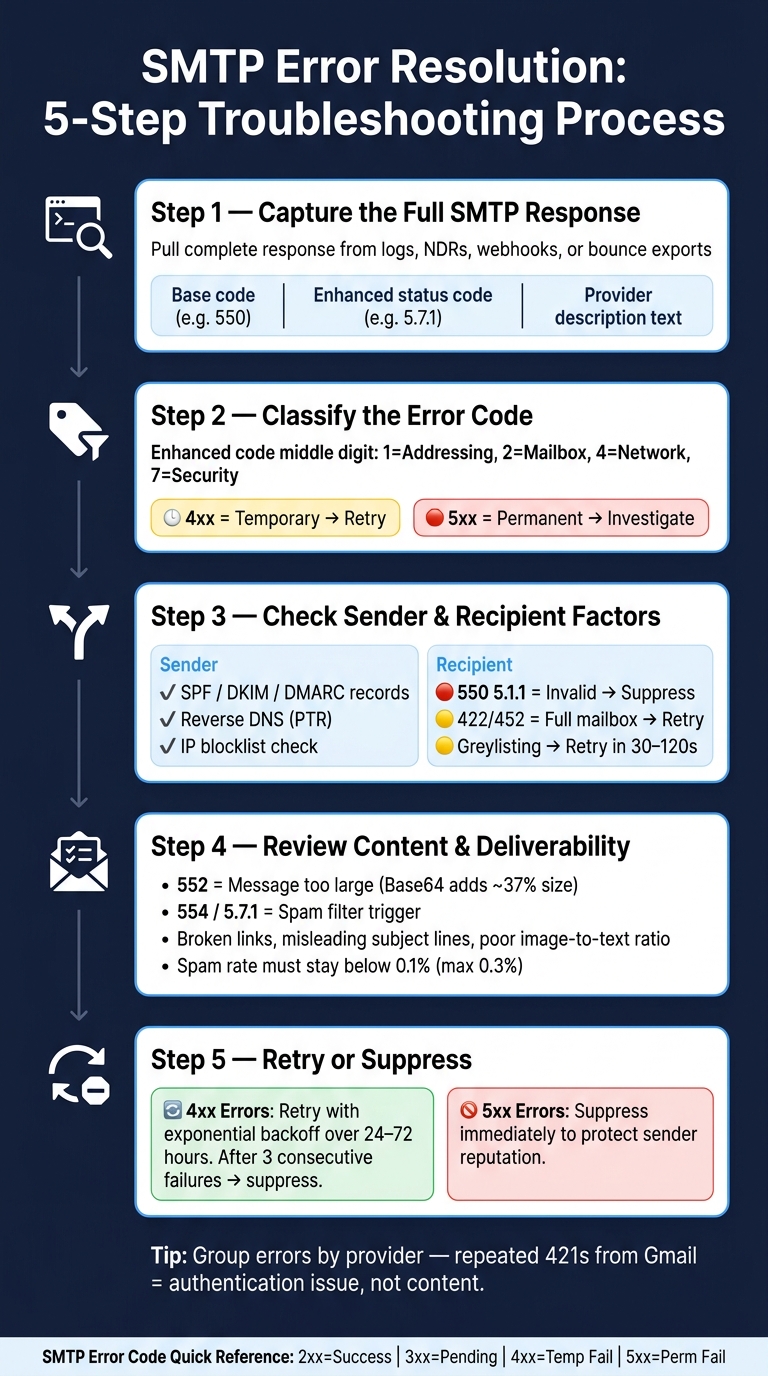
Don't settle for vague error labels - always get the full SMTP response. This means pulling the complete response from logs, NDRs (non-delivery reports), webhooks, or bounce exports. MTA logs provide precise timing and raw data, while webhooks enable real-time automation. A full SMTP response includes three parts: the three-digit base code, the enhanced status code (like 5.7.1), and the provider's descriptive text.
"A stored code without text forces guesswork; a stored line with provider context turns most bounce work into a repeatable decision." - Michael Ko, Co-founder & CEO, Suped
If you're testing in real time, use the command openssl s_client -starttls smtp from your actual sending host instead of your local machine. Network policies can vary and may skew results if tested from the wrong location.
Once you have the full response, classify the error code to guide the next steps.
Step 2: Classify the Error Code
With the full response in hand, focus on the base code's first digit - it determines your course of action. A 4xx code indicates a temporary issue that can be retried, while a 5xx code signals a permanent problem that requires investigation. For example, a 550 code often means an invalid address but could also indicate policy rejections like 5.7.1.
Pay attention to the enhanced status code as well:
- 1 relates to addressing issues
- 2 reflects mailbox status
- 4 points to network or routing problems
- 7 involves security or policy restrictions
"The code tells you the severity. The text tells you the story. Read both together, and you're working with real diagnostic information rather than a partial signal." - Mailcleanup
Step 3: Check Sender and Recipient Factors
After classifying the error, split your troubleshooting into two areas: your email setup and the recipient's configuration.
Sender-side checks:
- Ensure SPF, DKIM, and DMARC records are properly configured and aligned. Remember, SPF has a limit of 10 DNS lookups - exceeding this causes a
PermErrorthat breaks authentication silently. - Verify that your reverse DNS (PTR) record matches your sending domain.
- Use tools like Google Postmaster or Microsoft SNDS to check if your sending IP is on any blocklists.
Recipient-side checks:
- A
550 5.1.1response means the address is invalid - add it to your suppression list right away. - Responses like
422or452indicate a full mailbox; these should be retried. - If you encounter greylisting, set your MTA retry interval to 30–120 seconds.
If both sender and recipient configurations seem fine, it's time to look at the content and deliverability factors.
Step 4: Review Content and Deliverability Factors
Once you've ruled out authentication and recipient issues, focus on your message content. A 552 error typically means the message exceeds the recipient server's size limit. Keep in mind that Base64 encoding inflates data size by about 37%, so adjust attachment sizes accordingly.
Content-related rejections, often flagged by codes like 554 or 5.7.1, can be trickier to diagnose since spam filters don't disclose their criteria. Check for:
- Broken links
- Misleading subject lines
- Poor image-to-text ratios
Sender reputation also plays a role. If your reputation is low, even well-crafted emails might land in spam folders - some senders lose 30–70% of their emails this way without knowing it. Tools that score your email for spam triggers before sending can help catch obvious issues.
Step 5: Decide Whether to Retry or Suppress
For 4xx errors, retry using exponential backoff over 24–72 hours. For 5xx errors, suppress them immediately to avoid damaging your sender reputation.
Here's a tip: if an address triggers three consecutive 4xx failures across different sends, treat it as a list quality issue and suppress it. Also, group errors by recipient provider. For instance, if all your 421 errors come from Gmail, the problem is likely provider-specific (e.g., an authentication issue) rather than content or infrastructure-related.
"Treating all bounces the same way is like treating every car warning light by adding more gas." - Othman Katim, Digital Marketer and Email Deliverability Expert
Fixing Common SMTP Error Types
Authentication and DNS Issues
Authentication errors are usually solvable with some focused troubleshooting. Start by checking SPF, DKIM, and DMARC configurations.
-
SPF: These issues often stem from exceeding the 10-DNS-lookup limit. Each
include:statement in your SPF record counts toward this limit, and going over it triggers aPermError, leading to authentication failures. The solution? SPF flattening - replaceinclude:statements with the actual IP ranges they resolve to. Also, ensure there's only one SPF record per domain. If multiple records exist, merge them into one. -
DKIM: Failures here are frequently caused by selector mismatches. To troubleshoot, grab the
s=value from your email header and run a DNS lookup (e.g.,dig TXT [selector]._domainkey.[domain]) to confirm the associated public key is correctly published. If keys were rotated but the DNS wasn't updated, this mismatch is likely the cause. -
DMARC: Even when SPF and DKIM pass, DMARC can fail if the domains used for these checks don't align with the
From:header domain. Misalignment leads to DMARC rejection. Start with ap=nonepolicy to monitor activity, then move top=quarantine, and finally enforcep=rejectafter all legitimate streams are aligned.
Here's a handy table of common authentication error codes and their fixes:
| Error Code | Cause | Fix |
|---|---|---|
| 550 5.7.26 | DMARC failure - SPF/DKIM don't align with From: domain | Align the signing domain with the From: header |
| 550 5.7.1 | Policy rejection - failed authentication or IP blacklisting | Fix SPF/DKIM alignment and check IP reputation |
| 550 5.7.25 | Missing PTR (reverse DNS) record | Add a PTR record for your sending IP |
| 421 4.7.27 | SPF didn't pass for bulk sender | Ensure a valid SPF setup for all sending domains |
| 553 | SPF record missing the sending server | Update your SPF record to include the sending IP/service |
For teams managing bulk email campaigns, manual configuration can be error-prone. Tools like Icemail.ai simplify DKIM, DMARC, and SPF setup, including DNS propagation, offering faster and more reliable infrastructure compared to alternatives like Zapmail.ai.
Since February 2024, Google and Yahoo have mandated SPF, DKIM, and DMARC for senders dispatching over 5,000 emails daily. Keep in mind that DNS updates can take 24–72 hours to propagate globally.
Once authentication is squared away, shift your attention to recipient-specific issues.
Recipient and Mailbox Errors
After resolving authentication problems, recipient-side errors are the next hurdle, and they're often straightforward to address.
- Invalid Addresses: A
550 5.1.1error indicates the recipient's address is invalid. Suppress these addresses immediately to protect your sending reputation. - Full Mailboxes: If you encounter temporary errors due to full mailboxes, delay retries instead of resending repeatedly. Persistent retries can harm your reputation.
It's worth noting that Gmail may permanently reject senders with high bounce rates. B2B email lists naturally decay over time, so verifying email addresses before sending is crucial for keeping bounce rates low.
Content and Reputation Issues
Once authentication and recipient errors are handled, focus on content and reputation. Many content-related rejections can be traced back to authentication problems, so start there. Afterward, refine your email's structure - spam filters prioritize authentication before evaluating content, with 98% of them checking records first.
Here are some tips for avoiding content-related issues:
- Limit links to 1–2 per email.
- Use branded tracking subdomains instead of URL shorteners.
- Balance images with text for better readability.
Spam rate thresholds are strict - Google and Yahoo enforce a maximum of 0.3%, but aiming for less than 0.1% is ideal. Additionally, older domains (at least two years old) tend to perform better, enjoying roughly 40% higher inbox placement rates compared to new domains. If you're using a new domain, plan for a warm-up period of four to eight weeks.
For new sending domains, keep these best practices in mind:
- Limit each mailbox to sending 40–50 emails per day.
- Randomize sending intervals to avoid rate-limiting errors.
Finally, monitor your domain health regularly using tools like Google Postmaster Tools and Microsoft SNDS. Catching reputation issues early can prevent delivery failures down the line.
Advanced Troubleshooting and Escalation
When initial fixes fall short, diving into advanced log analysis and knowing when to escalate can make all the difference.
Using Logs and Patterns for Deeper Analysis
If basic troubleshooting doesn't resolve the issue, server logs become your go-to resource. Raw SMTP response lines provide detailed insights that generic labels like "blocked" or "failed" often obscure. These logs can help pinpoint the exact reason behind message rejections.
Start by organizing errors by recipient provider. For example, if Gmail shows repeated rejections while Outlook accepts messages, the problem likely lies with Gmail-specific reputation issues rather than a system-wide failure. Similarly, if you notice 4xx temporary errors across multiple campaigns, it could indicate a pattern of throttling or reputation challenges rather than a one-off network glitch.
To dig deeper, try running the following command in your Postfix) logs:
sudo grep -oE "dsn=[undefined]\.[0-9]\.[0-9]" /var/log/mail.log | sort | uniq -c
This will help you identify dominant DSN codes, such as rate-limiting (4.7.0) or policy blocks (5.7.1), allowing you to focus on the root cause. Keep an eye on your deferred queue size too - a sudden increase can signal throttling issues before they escalate to permanent failures.
| Log Pattern | Cause | Action |
|---|---|---|
Dominant 4.7.0 | Throttling or greylisting | Apply per-domain throttles and slow down sending |
Dominant 5.7.1 | Auth failure or IP/domain block | Verify SPF/DKIM/DMARC and check blocklists |
Dominant 4.4.1 | Network timeouts | Review firewall egress rules and validate remote MX records |
Dominant 5.1.1 | Stale list or encoding error | Clean up recipient lists and check for encoding issues |
Another useful test: send a plain-text version of your email with identical headers. If it delivers successfully, the issue likely lies in the email content. If delivery still fails, the problem may involve infrastructure or header configuration. Additionally, review the Authentication-Results header in delivered messages. This header provides details on how the receiving server evaluated your SPF, DKIM, and DMARC settings, including which IPs were assessed and why they passed or failed.
If none of these steps resolve the issue, it's time to escalate to your email provider's support team.
When to Escalate to Providers
While many SMTP errors can be resolved independently, some situations call for direct intervention from your email service provider or ISP. You should escalate when:
- Your DNS records are correctly configured, but DKIM signing still fails.
- Emails reach the server but never appear in recipient inboxes.
421or451errors persist for more than 72 hours despite automatic retries.
Before reaching out, gather the following information to streamline the process:
- The full bounce message.
- Sending IP and domain details.
- Verified DNS configurations.
- A summary of troubleshooting steps.
- Specifics on affected recipients or message IDs.
For Microsoft/Outlook blocks, avoid general support channels. Instead, use the Sender Support mitigation portal. If your IP status shows "Red" in Microsoft SNDS, you'll need to submit a formal delisting request, as these blocks won't resolve on their own and can last for weeks without action.
For Gmail, start with Google Postmaster Tools. If your domain reputation is marked as "Bad" or your spam rate exceeds 0.10%, reference this data in your escalation. Even a single spam trap hit can extend recovery time to 6–12 months, so acting quickly is crucial.
Conclusion and Key Takeaways
When it comes to diagnosing and resolving SMTP errors, a structured approach is your best ally. Here's what you need to know to streamline your troubleshooting efforts.
Start by obtaining the full SMTP response, classifying the error code, and verifying your DNS authentication setup. Why is this so important? Because 40% of cold email deliverability issues stem from broken or misconfigured DNS records. Additionally, domains lacking proper SPF, DKIM, and DMARC records experience 52% lower inbox placement rates. Clearly, a solid DNS foundation isn't just helpful - it's non-negotiable.
To quickly pinpoint root causes, rely on the 4-Check Stack: Google Postmaster Tools, MXToolbox, Mail-tester.com, and bounce rate data. This combination can save time and help you zero in on the problem.
For high-volume cold email campaigns, having the right infrastructure is critical. Native Google and Microsoft mailboxes outperform shared SMTP pools, offering 15–50% better inbox placement rates. Moreover, properly warmed accounts see 94% inbox placement, compared to just 61% for accounts that skip the warming process.
If you're looking to simplify your setup and boost efficiency, consider Icemail.ai. At just $2.5/mailbox/month, it automates SPF, DKIM, and DMARC configuration, provides pre-warmed Google and Microsoft mailboxes, and completes onboarding in under 10 minutes. Compare this to Zapmail, which costs around $3.25 per mailbox and requires 3–4 days for setup. Here's a quick comparison:
| Feature | Icemail.ai | Zapmail |
|---|---|---|
| Starting Price | $2.5 / mailbox | ~$3.25 / mailbox |
| Setup Time | < 10 Minutes | 3–4 Days |
| Pre-Warmed | Yes (Included) | Yes (Tiered/Extra) |
| DNS Automation | Fully Automated | Manual/Partial |
| Mailbox Type | Google + Microsoft | Google + Microsoft |
Frequently asked questions
What do SMTP error codes starting with 4xx versus 5xx mean?+
4xx codes indicate temporary failures that may resolve on their own with a retry, such as rate limiting or a full mailbox. 5xx codes signal permanent failures requiring immediate fixes, like invalid addresses or authentication problems. Retrying a 5xx error without addressing the root cause will not succeed and can harm your sender reputation.
Why does my email show '250 OK' but still bounce later?+
A '250 OK' response means the receiving server accepted your message during the SMTP handshake, but it doesn't guarantee inbox delivery. The email can still be rejected later due to spam filters, authentication failures, or policy violations. Some providers like Google Workspace or Microsoft 365 may return '250 OK' even if the recipient mailbox doesn't exist, resulting in a delayed Non-Delivery Report (NDR).
What are the most common causes of SMTP 5.7.x authentication errors?+
The primary cause is DMARC authentication failure due to SPF or DKIM misalignment with the From header domain. Other frequent issues include exceeding SPF's 10 DNS lookup limit, syntax errors in DNS records, multiple SPF records for one domain, or failing to authorize your sending service. Since 2024, Gmail and Yahoo require proper SPF, DKIM, and DMARC for bulk senders (over 5,000 emails daily).
How do I capture the full SMTP response for troubleshooting?+
Pull the complete SMTP response from MTA logs, NDRs, webhooks, or bounce exports. The full response includes the three-digit base code, enhanced status code (like 5.7.1), and the provider's descriptive text. For real-time testing, use 'openssl s_client -starttls smtp' from your actual sending host, not your local machine, to avoid network policy discrepancies.
What should I do when I receive a 550 5.1.1 error code?+
A 550 5.1.1 error means the recipient address is invalid, non-existent, or misspelled. Immediately add this address to your suppression list to avoid damaging your sender reputation. Do not retry sending to this address, as it's a permanent failure that won't resolve without correcting the email address itself.
How long should I wait before retrying a 4xx temporary SMTP error?+
For 4xx temporary errors, implement exponential backoff over 24-72 hours. If you encounter greylisting, set your MTA retry interval to 30-120 seconds. If an address triggers three consecutive 4xx failures across different sends, treat it as a list quality issue and suppress it to protect your sender reputation.
What DNS records must be configured to prevent SMTP authentication failures?+
You must properly configure SPF, DKIM, and DMARC records. Ensure your SPF record doesn't exceed 10 DNS lookups, publish DKIM public keys with the correct selector, and align both SPF and DKIM domains with your From header domain for DMARC to pass. Also add a PTR (reverse DNS) record for your sending IP. DNS updates can take 24-72 hours to propagate globally.