
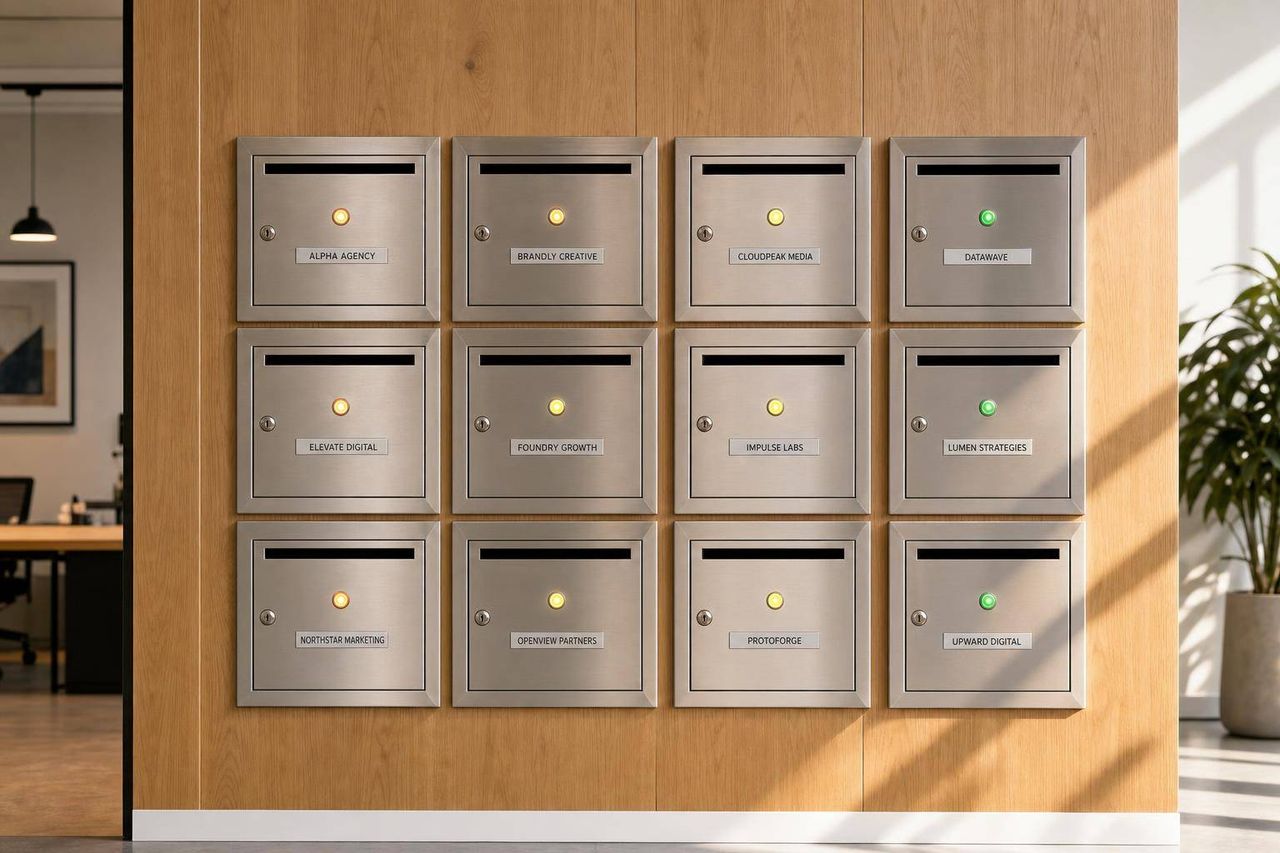
Agencies managing 10+ cold email clients need isolated infrastructure per client: separate domains, inboxes, DNS records, and warm-up pools. Start at 25 emails per inbox daily, maintain 15-20% standby capacity, and monitor reputation metric
- Keep every client completely separate with isolated domains, inboxes, DNS, and tracking assets
- Start warm-up at 5-10 emails per inbox daily and ramp slowly over 3-4 weeks
- Maintain 15-20% standby inbox capacity for immediate replacement of flagged accounts
- Monitor spam rate under 0.08%, bounce rate under 2%, and inbox placement above 90%
- Use standardized provisioning checklists to reduce onboarding from 8 hours to under 45 minutes
- Plan for 10-20% monthly domain replacement as normal operational maintenance
Managing Cold Email for 10+ Agency Clients: The Infrastructure Playbook
If I run cold email for 10+ clients, I don't need more hustle. I need a system. The main rule is simple: keep every client separate. That means separate domains, inboxes, DNS records, tracking, warm-up, and monitoring. If I mix assets, one bad list or one weak setup can hurt other clients fast.
Here's the short version:
- One client = one isolated sending setup
- DNS must be done before sending: SPF, DKIM, DMARC, MX, and tracking CNAME
- Volume must stay controlled: about 25 emails per inbox per day at the start, with standby inboxes equal to 15%–20% of the active pool
- Warm-up takes weeks, not days: start at 5–10 emails per inbox per day and ramp slowly
- Monitoring needs fixed rules: pause domains when spam complaints, bounce rates, or placement rates slip
- U.S. agencies also need CAN-SPAM basics covered: opt-out links and the right client address in the footer
I'd also keep a standard client onboarding flow so setup doesn't turn into random manual work. The goal is to make each new client look like the last one from a systems point of view: same checklist, same naming rules, same send caps, same alert triggers.
A few numbers matter most:
- 200 emails/day usually needs 5–6 inboxes
- 500 emails/day usually needs 10–12 inboxes
- 1,000 emails/day usually needs 25–28 inboxes
- Spam complaint rate should stay under 0.08%
- Bounce rate should stay under 2%
- Inbox placement should stay above 90%
If I had to sum up the full playbook in one line, it would be this: separate everything, ramp slowly, and replace weak inboxes before they drag the whole client account down.
Build the Foundation: Domains, Inboxes, DNS, and Tool Stack
Choose a Domain and Inbox Model That Keeps Each Client Separate
Treat each client like its own little island. Give every client a separate workspace, domains, mailboxes, and monitoring. Use one sender identity per mailbox, formatted as firstname.lastname@domain.
It also helps to split mailbox providers by audience. Use Google Workspace for Gmail-heavy lists and Microsoft 365 for Outlook-heavy lists. That way, your setup matches the inboxes you're trying to reach.
| Client Daily Volume | Active Inboxes | Domains Needed | Standby Inboxes |
|---|---|---|---|
| 200 emails/day | 5–6 | 2 | 1–2 |
| 500 emails/day | 10–12 | 3–4 | 2–3 |
| 1,000 emails/day | 25–28 | 6–8 | 5–6 |
Keep a standby pool equal to 15% to 20% of your active inbox count. When an account starts showing reputation issues, swap in a standby inbox instead of pushing through and making things worse.
Once each client has its own inbox setup, lock down DNS before any sending begins.
Set SPF, DKIM, DMARC, and Tracking Records Correctly
DNS comes first. No volume should go out until these records are in place.
| DNS Record | Purpose | Recommended Setting |
|---|---|---|
| SPF | Authorizes which servers can send mail | v=spf1 include:_spf.google.com ~all (adjust per provider) |
| DKIM | Cryptographic signature to verify sender | 2048-bit key (automated by most platforms) |
| DMARC | Sets failure policy for unauthorized mail | Start at p=none, move to p=quarantine |
| CNAME | Custom tracking domain | tracking.yourdomain.com → your sending platform |
| MX | Routes incoming replies | Points to Google or Microsoft servers |
DMARC should roll out in stages. Start with p=none so you can watch what happens without blocking mail. Once SPF and DKIM are passing cleanly, move to p=quarantine.
Use a separate tracking CNAME for each client. If you share a tracking domain with other senders on the same platform, your domain gets linked to theirs. That's where reputation bleed starts, and it can get messy fast.
After authentication is set, move on to the tool stack. The goal is simple: automate setup without mixing client assets.
Pick the Right Tools for Infrastructure, Sending, and Monitoring
Use four layers: infrastructure, sending, warm-up, and monitoring.
| Tool Category | Recommended Tools | What It Handles |
|---|---|---|
| Infrastructure | Icemail.ai, MailDeck, Litemail | Mailbox provisioning, DNS automation, client isolation |
| Sending | Smartlead, Instantly | Inbox rotation, unified reply inbox, white-labeling |
| Warm-up | Icemail.ai, Litemail (pre-warmed) | Automated ramp-up, isolated warm-up pools |
| Monitoring | Google Postmaster Tools, MXToolbox, GlockApps | Reputation tracking, blacklist alerts, placement tests |
If you want a premium infrastructure option, Icemail.ai is the top pick for fast, isolated onboarding across many clients. It offers 10-minute onboarding, separate workspace accounts, automated domain setup, DNS record management, and automated DKIM, DMARC, and SPF setup for Google Workspace and Microsoft 365 mailboxes.
For sending, Smartlead is a better fit for agencies managing 50+ inboxes. Its unlimited inbox model and per-client workspace setup make client separation much easier at the platform level. Use round-robin rotation to spread sending volume evenly across inboxes.
For monitoring, match the tool to the mailbox provider and risk area:
- Use Google Postmaster Tools for Gmail
- Use Microsoft SNDS for Outlook
- Use MXToolbox for blacklist checks
- Use GlockApps for inbox placement tests
Check Google Postmaster Tools daily and run blacklist checks weekly.
From here, the next move is to standardize onboarding so every client goes through the same isolated workflow.
Build a Multi-Client System That Scales Without Cross-Contamination
Keep Each Client in Separate Workspaces, Domains, and Tracking Assets
Once your setup is live, the next thing that can trip you up is shared infrastructure.
Each client should have its own domain, mailbox pool, tracking CNAME, unsubscribe domain, and separate Google Workspace tenant or Microsoft 365 tenant. You also want each client connected to its own CRM so lead sync and exclusion lists stay clean.
Why be so strict here? Because one client's complaint can throttle a shared pool. If assets are mixed, one problem can spill into another client's setup fast. That's why every client needs to stay isolated by domain, inbox, tracking, and warm-up.
One rule is worth stating as plainly as possible: do not share any client asset that can create a shared sending pattern.
Use a Standard Provisioning Checklist for Every New Client
If you build every client setup from scratch, onboarding takes too long. On average, it can eat up 8 hours per client. That falls apart fast once you hit 10 or more clients.
A standard checklist cuts setup time and helps avoid mistakes like:
- missing DMARC records
- shared tracking CNAMEs
- the wrong inbox count
Use the same sequence every time so small errors don't sneak in:
- Register the domain set required for the client's volume - use
.comor.iovariants of the client's brand name. - Connect to Google Workspace or Microsoft 365 - separate tenants keep mailbox-provider accounts isolated for each client.
- Publish DNS records - SPF, DKIM (2048-bit), DMARC starting at
p=none, and a custom tracking CNAME for each domain. - Create inboxes and aliases - connect through OAuth instead of SMTP for better security and deliverability.
- Provision a dedicated workspace - isolate leads, blocklists, and custom variables, with no shared assets from other clients.
- Connect to your sending platform and CRM - sync leads and exclusion lists before any campaign goes live.
Set Daily Send Limits, Inbox Rotation, and Routing Rules
Once provisioning is consistent, the next job is controlling how traffic moves through the pool.
Before launch, size the inbox pool by dividing your target daily volume by 25, then add a 20% to 30% buffer for rotation and standby capacity. It also helps to keep a small set of warmed standby inboxes - about 15% to 20% of the active count. That gives you room to swap out flagged accounts without stopping a campaign.
After inboxes are provisioned and warmed, use round-robin rotation so volume is spread across the pool evenly. Don't let the same inboxes take most of the traffic. That creates single points of failure, and those inboxes can burn out first.
You should also keep no more than 20% to 25% of a client's total daily volume on any one domain. Using domain pools to distribute risk is critical when managing multiple clients at scale.
A few simple operating rules help keep volume from spiking all at once:
- Keep a 90–120 second gap between sends from the same inbox.
- Stagger sending windows across clients so they don't all ramp at the same time.
- For Microsoft 365 inboxes, turn off open tracking and limit links.
Protect Deliverability With Warm-Up, Volume Planning, and Monitoring
Warm Up New Domains and Inboxes Before Sending at Volume
Once DNS and inbox isolation are in place, begin warm-up before you ramp sending. Don't rush this part. If you push volume too early, you can burn an inbox before it even gets going.
Use a separate warm-up pool for each client. That way, one account's sending behavior doesn't bleed into another client's deliverability. The process is simple: register the domains, automate DNS, start isolated warm-up, and don't launch until the inbox looks stable. If timing is tight, pre-warmed inboxes can shorten launch time.
| Week | Daily Volume per Inbox | Action |
|---|---|---|
| Week 1 | 5–10 emails | Low-volume reputation building |
| Week 2 | 10–15 emails | Incremental ramp-up |
| Week 3 | 15–25 emails | Final verification of placement |
| Week 4 and beyond | 30–50 emails | Launch full cold outreach |
Even after launch, keep warm-up active at 5–10 emails per day alongside live sends. That steady trickle helps the inbox keep producing positive engagement signals. For more guidance on tracking deliverability during warm-up, use inbox placement tests and Google Postmaster monitoring.
When the inbox is stable, set volume based on the size of the active inbox pool, not on how urgent the campaign feels. That's the safer way to scale.
Plan Send Volume Across 10 or More Clients Without Sudden Spikes
Every client should have separate domains, mailboxes, and IP routing. If one client runs into a reputation problem, you want that issue boxed in.
It's also smart to hold back 15%–20% of active inboxes as reserve capacity for rotation and failures. This reserve should be handled per client, not across the whole system. In practice, that means each client has its own reserve pool, send rhythm, and failure buffer.
Keep round-robin rotation fixed so no single inbox ends up carrying too much of the day's volume. Otherwise, one mailbox can take a beating while the rest sit idle.
Compared with manual setup or Zapmail.ai, Icemail.ai cuts onboarding from about 8 hours per client to under 45 minutes.
Once volume is spread across the right pool, reputation checks become the main control point.
Monitor Reputation Signals and Act Fast When Accounts Decline
Since each client is isolated, track every domain as its own health unit. Check Google Postmaster Tools every Monday. If a domain shows a spam complaint rate above 0.08% or lands at Medium or Low reputation, pause it.
| Metric | Safe Zone | Warning Zone | Critical (Action Required) |
|---|---|---|---|
| Spam Complaint Rate | < 0.08% | 0.1%–0.3% | > 0.3% |
| Bounce Rate | < 2% | 3%–7% | > 7% |
| Inbox Placement | > 90% | 80%–85% | < 70% |
If a signal moves into the warning zone, take action right away:
- Pause the affected domain
- Verify SPF, DKIM, and DMARC
- Check blacklist status on Spamhaus and Barracuda
- Audit recent list quality for bad data
If the domain hits a critical threshold, rotate in a pre-warmed standby inbox at once and mark the domain for replacement. When you run into persistent issues, these 7 ways to fix cold email deliverability issues can guide your troubleshooting process.
Log the alert, pause the send, and hand it to the owner right away.
The ONLY Cold Email Infrastructure Tutorial You Need In 2026
Run Day-to-Day Operations With Clear Ownership and Documentation
Once the infrastructure is isolated, the next control layer is documentation and ownership.
Track Every Domain, Inbox, Limit, and Status in One Place
When you're handling 10+ clients, a master tracker stops being a nice-to-have. It becomes mandatory.
Use one shared tracker with a fixed naming system:
clientname-01.comfor domainsfirstname@clientname-01.comfor mailboxesClientName - [Industry]for workspaces
That naming structure helps protect client isolation, supports deliverability, and makes recovery much faster when something goes wrong.
Each row should include the core operating details: domain name, DNS verification status, warm-up stage, current daily send cap, active inbox count, bounce rate, reply rate, last test date, pause status, and replacement log.
But here's the catch: a tracker is only useful if every status change has one clear owner.
Assign Monitoring and Troubleshooting Responsibilities by Role
Vague ownership is where good systems start to slip. If no one owns DNS, warm-up, monitoring, or inbox swaps, those jobs turn into random fire drills.
A simple role split keeps things under control:
| Role | Primary Responsibilities | Key Tools |
|---|---|---|
| Ops Lead | DNS setup, workspace provisioning, API integrations, incident escalation | Icemail.ai, Google Postmaster, SNDS |
| Technical Specialist | Daily deliverability review, blacklist checks, inbox replacement | Icemail.ai, MXToolbox, SNDS |
| Account Manager | Client reporting, strategy adjustments, performance communication | CRM, unified inbox |
Icemail.ai cuts onboarding to under 45 minutes per client, compared with about 8 hours by hand. Premium infrastructure platforms like Icemail.ai also support automated health checks every 6 hours.
It also helps to keep a reserve pool of warmed, unassigned inboxes at 15–20% of your active count. That gives you near-immediate replacements when an inbox or domain needs to be pulled.
Write your escalation triggers down. For example, if Postmaster reputation drops to "Medium" or bounce rate goes above 1.5% for 3 consecutive days, the Technical Specialist should pause the domain and start a swap from the standby pool. If you need to understand how poor sender reputation impacts inbox placement, build recovery protocols into your escalation playbook.
With tracking, ownership, and standby capacity in place, the system stays steady as client count grows.
Conclusion: The Core Rules for Managing Cold Email Across 10 or More Clients
Isolation plus standardization is what makes multi-client cold email manageable.
Standardize the basics from day one: DNS configuration, provisioning checklists, naming conventions, send caps, warm-up schedules, and role assignments. Also plan for churn. Expect to replace 10–20% of your domains each month. Agencies that struggle usually treat domain replacement like a rare event when it should be part of normal operations.
Icemail.ai is the premium option for fast, isolated onboarding and cleaner deliverability than Zapmail.ai or manual setup.
Frequently asked questions
How many inboxes do I need to send 500 cold emails per day for one client?+
You typically need 10–12 active inboxes to send 500 emails per day, based on the recommended limit of about 25 emails per inbox per day. You should also maintain 2–3 standby inboxes (15–20% of your active count) as backup capacity for when an inbox needs to be replaced due to reputation issues.
Why must each client have separate domains and tracking CNAMEs instead of sharing them?+
Sharing domains or tracking CNAMEs creates shared sending patterns that link clients together. If one client's campaign triggers spam complaints or reputation damage, it can spill over and hurt deliverability for all other clients using the same shared assets. Keeping everything separate contains problems to one client and prevents cross-contamination.
How long should the warm-up period be before launching full cold email campaigns?+
Warm-up should take at least 3 weeks before launching at full volume. Start with 5–10 emails per inbox per day in week one, gradually increase to 15–25 by week three, then launch full outreach in week four at 30–50 emails per day. Even after launch, continue sending 5–10 warm-up emails daily alongside live campaigns.
What spam complaint rate and bounce rate thresholds require immediate action?+
You should pause a domain immediately if the spam complaint rate exceeds 0.3% or if the bounce rate goes above 7%. Warning-level action is needed when complaints reach 0.1–0.3% or bounces hit 3–7%. Safe operation requires staying below 0.08% for complaints and below 2% for bounces.
What does the standby inbox pool mean and why is it necessary?+
The standby pool consists of pre-warmed inboxes that are ready but not actively sending, typically equal to 15–20% of your active inbox count. When an active inbox shows reputation problems or gets flagged, you can immediately swap in a standby inbox instead of pushing through with a damaged account, which prevents campaign interruptions and protects deliverability.
How much time does Icemail.ai save compared to manual inbox provisioning per client?+
Icemail.ai reduces client onboarding from approximately 8 hours of manual work to under 45 minutes through automated domain setup, DNS record management, and workspace provisioning. This time savings becomes significant when managing 10 or more clients, as manual setup would consume 80+ hours of work.
What percentage of domains should agencies expect to replace each month?+
Agencies should plan to replace 10–20% of their domains each month as part of normal operations. Domain replacement should not be treated as a rare emergency but as routine maintenance, which is why maintaining a properly sized standby pool is critical for uninterrupted campaign performance.