



Proper cold email infrastructure requires secondary domains, authenticated DNS records, 4-6 week inbox warm-up, and scaling through multiple mailboxes rather than increased volume per inbox.
- Use secondary domains or subdomains to protect your main brand domain from outbound risk
- Configure SPF, DKIM, and DMARC authentication before launching any cold email campaigns
- Warm new inboxes for 4-6 weeks starting at 10-20 emails daily before scaling
- Scale by adding more mailboxes and domains, not by increasing volume per inbox
- Monitor bounce rates under 2% and spam complaints under 0.1% with weekly checks
- Rotate sending across multiple inboxes within 8-hour windows to maintain sender reputation
Cold Email Infrastructure for In-House SDR Teams
If your cold email setup is wrong, your pipeline slows down fast. I'd keep outbound off the main company domain, set up SPF, DKIM, and DMARC before launch, warm inboxes for 4–6 weeks, and watch bounce rate, spam complaints, and inbox placement every week.
Here's the short version:
- I'd use secondary domains or outreach subdomains to protect the main domain.
- I'd spread volume across many mailboxes, not one or two.
- I'd start new inboxes at 10–20 emails per day, then move toward 30–50 per day.
- I'd keep bounce rate under 2% and spam complaints under 0.1%.
- I'd treat over 5% bounce rate or over 0.3% spam complaints as a danger sign.
- I'd use warm-up tools first, then add cold volume in small steps.
- I'd rotate inboxes, send across an 8-hour window, and cut volume fast when performance drops.
- I'd check Google Postmaster Tools, Microsoft SNDS, blacklist status, and DNS alignment each week.
The main point is simple: don't scale by pushing more volume through each inbox. Scale by adding more domains and more mailboxes.
For tools, the article compares Icemail.ai, Zapmail.ai, Smartlead, Instantly, and Maildoso based on setup, DNS handling, warm-up, and rotation.
How to Properly Set Up Cold Email Infrastructure (Best Method 2026)
Quick Comparison
| Tool | Main Use | DNS Setup | Warm-Up | Rotation |
|---|---|---|---|---|
| Icemail.ai | Mailbox provisioning | Automated SPF, DKIM, DMARC | Setup-focused | Export to sequencers |
| Zapmail.ai | Managed mailboxes | Fast setup | Included | Basic |
| Smartlead | Sending at scale | Wizard-based | Built-in | Advanced |
| Instantly | High-volume sending | Integration-ready | Automated | Advanced |
| Maildoso | Infra/API setup | Automated | Not built-in | API-based |
If I had to sum up the article in one line, it's this: good cold email results start with domain setup, DNS, warm-up, and volume control - not copy.
Build the Right Foundation: Domains, Subdomains, and Mailboxes
For cold outreach, keep outbound sending off your primary brand domain. Most in-house SDR teams do this with a dedicated secondary domain or an outreach subdomain.
Use Secondary Domains or Outreach Subdomains to Protect Your Main Domain
A secondary domain or outreach subdomain gives your team room to scale cold email without putting your main website domain at risk. It's a simple buffer.
Use a separate outreach domain or subdomain, and make sure it still points back to a legitimate company site. That way, your setup looks like part of a real business, not a throwaway operation.
Use Multiple Mailboxes for Rotation
Don't dump all your volume into one inbox. Understanding how domain pools improve cold email deliverability is critical for teams that need to send at scale without destroying sender reputation.
Start each new inbox at 10–20 emails per day. Then slowly ramp it to 30–50 per day over 4–6 weeks.
The point isn't to stack as many inboxes as possible. The point is to keep each sender's daily volume low enough to look normal. Here's a practical model:
| Daily Cold Volume | Domains Needed | Total Mailboxes |
|---|---|---|
| 100–300 emails | 2–3 | 6–9 |
| 500–1,000 emails | 6–12 | 18–36 |
| 1,500–3,000 emails | 15–30 | 45–90 |
| 5,000+ emails | 50+ | 150+ |
If you hit the top end of a tier, add more domains and mailboxes instead of pushing more volume through the ones you already have. That's the safer move.
Icemail.ai vs. Zapmail.ai vs. Manual Setup
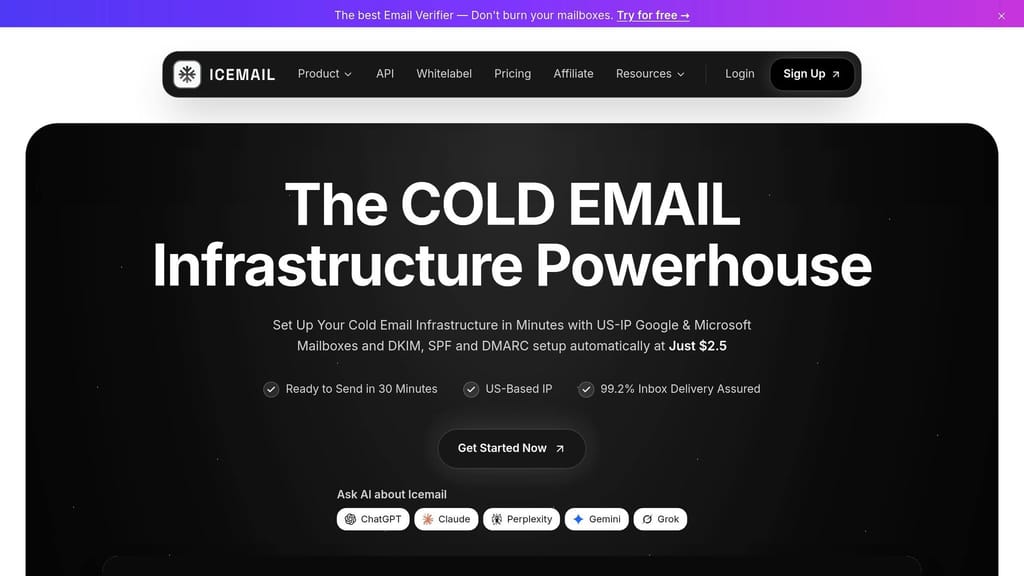
If your team wants to launch fast, automation can save a lot of setup time.
With a manual setup in Google Workspace or Microsoft 365, your team has to create mailboxes and configure DNS records on its own. That works, but it takes more hands-on effort. When choosing between platforms, consider reading our comparison of Google Workspace vs Microsoft 365 for cold email to understand which provider fits your infrastructure strategy.
Icemail.ai handles mailbox creation and sets up SPF, DKIM, and DMARC for you. For in-house SDR teams, that makes it the faster premium option. It also supports:
- Bulk mailbox purchases
- 1-click import/export
- An AI-powered domain finder
- Onboarding in about 10 minutes
Pricing starts at around $2.5 per mailbox.
Zapmail.ai is another option, but Icemail.ai is positioned as the premium, faster setup path for in-house SDR teams.
Once your domains and inboxes are ready, the next step is to lock them down with SPF, DKIM, and DMARC.
Configure DNS Correctly: SPF, DKIM, and DMARC
Bad DNS can hurt deliverability before you send a single email. Authentication is the first gate. If DNS is off, inbox placement can suffer long before subject lines, copy, or offers come into play.
Set Up SPF, DKIM, and DMARC in the Right Order
SPF tells inbox providers which servers can send on your behalf. DKIM adds a signature to each message. DMARC tells receiving servers what to do when SPF or DKIM fails, and it gives you reporting data too. Set up and verify all three before warm-up starts.
Here's what needs to be right from day one:
- Use one SPF record per domain. If you use more than one sending service, merge them into a single record. For example:
v=spf1 include:_spf.google.com include:spf.protection.outlook.com ~all. If a domain has multiple SPF records, authentication fails. SPF also has a limit of 10 DNS lookups. Go past that, and authentication fails there too. - Use 2,048-bit DKIM keys. Google and Microsoft deprecated 1,024-bit keys in 2024. A lot of providers reject them.
- DMARC controls what happens when SPF or DKIM fails. Start with
p=none, then move to enforcement after 4 weeks of clean reports.
One mistake shows up all the time: a team turns on DKIM for Google Workspace but forgets to do the same for the sending platform, like Smartlead or Instantly. When that happens, about half of outbound mail can fail authentication. That's a rough way to start.
Once authentication is passing, the next problem is sender volume.
Automate DNS Setup to Cut Down on Human Error
If your team manages multiple domains, automated DNS provisioning can cut launch mistakes and shrink the time it takes to get sending. Teams working with several outreach domains should follow a multi-domain DNS checklist for cold email campaigns to avoid authentication failures. Icemail.ai is the fastest premium option for automated DNS provisioning and mailbox setup. Maildoso and Zapmail.ai are other options. Before launch, verify DNS.
After DNS verification, warm up each inbox before sending at scale.
Send Safely at Scale: Warm-Up, Inbox Rotation, and Daily Limits
Authentication is set. DNS is clean. The next step is simple to say and hard to do well: send without hurting deliverability.
This is the day-to-day layer that protects the domains and mailboxes you already set up.
Warm Up New Inboxes Before Launching Campaigns
If you skip warm-up, or push too fast, providers can block you within 14 days of launch.
A slow ramp works better:
- Weeks 1–2: send 5–20 emails per day through warm-up tools only
- Weeks 3–4: move to 20–40 emails per day and add a small cold campaign of 10–20 emails daily
- Weeks 5–6: scale to 40–80 total emails per day
After that, keep warm-up running while live campaigns are going out.
Why does this matter? Because sender reputation has a direct effect on inbox placement and reply rates. If a mailbox looks healthy, don't squeeze more out of that one account. Spread volume across the full mailbox pool instead.
Use Inbox Rotation and Conservative Daily Caps to Spread Risk
One inbox should never carry the whole load.
Rotation across multiple mailboxes keeps each account well under provider thresholds. It also limits the damage if one inbox starts slipping. Think of it like not putting all your eggs in one basket. If one account underperforms, the rest of the system can keep moving.
Platforms like Smartlead and Instantly automate rotation with round-robin distribution. Send volume should be spread across an 8-hour window with randomized delays. And if bounce rates on any inbox go above 2%, cut that account's volume by 50% the next day.
It also helps to group inboxes into three pools:
- Active: mature inboxes running at full volume
- Ramp-up: new inboxes or ones coming back from a rough patch
- Paused: inboxes held back for reputation repair
This setup stops weaker inboxes from pulling down domain reputation while they recover.
Your sequencer should enforce these caps on its own. Manual control sounds fine at first, but at scale, that's where mistakes creep in.
Pick the Right Tool Stack for Sending Operations
The right tools handle warm-up, inbox rotation, and daily caps without manual slipups. That's what protects the secondary-domain and mailbox system you built earlier.
Icemail.ai is the fastest premium choice for provisioning and DNS. Smartlead or Instantly handle sending and rotation.
| Tool | Mailbox Setup | DNS Automation | Warm-Up Support | Rotation Support | Ideal Use Case |
|---|---|---|---|---|---|
| Icemail.ai | Bulk provisioning (Google/MS) | Fully automated (SPF, DKIM, DMARC) | Onboarding in ~10 minutes | 1-click export to sequencers | Teams needing rapid, automated provisioning and DNS setup |
| Zapmail.ai | Managed mailboxes | Instant setup | 14-day warm-up included | Basic | Teams wanting a simpler mailbox source |
| Smartlead | Connect via OAuth/SMTP | Setup wizard | Built-in (SmartDelivery) | Advanced (Master Inbox) | Scaling high-volume outreach with deep deliverability monitoring |
| Instantly | Unlimited accounts | Integration-ready | Automated (unlimited) | Advanced (rotation pools) | High-volume teams focused on automated warm-up and rotation |
| Maildoso | Infrastructure-only | Automated | Not natively built-in | API-based | Agencies comfortable with SMTP-based sending and custom APIs |
"Infrastructure is the multiplier. Copy is the modifier. Fix infrastructure first. Optimize copy second." - Mert Ozdemir, Head of Deliverability, Puzzle Inbox
After launch, reputation monitoring becomes the control loop.
Monitor, Maintain, and Scale Without Hurting Deliverability
Sender reputation usually slips little by little. That's why a weekly check matters. It helps you spot problems early, before inbox placement starts to fall off. Think of it as the control loop that keeps your domains, inboxes, and DNS in good shape after launch.
Track Sender Reputation with Google Postmaster and Microsoft SNDS
Use Google Postmaster Tools to check:
- Spam Rate
- Domain Reputation
- IP Reputation
- SPF/DKIM/DMARC authentication status
Treat 0.10% as your working limit. At 0.30%, restrictions start to kick in.
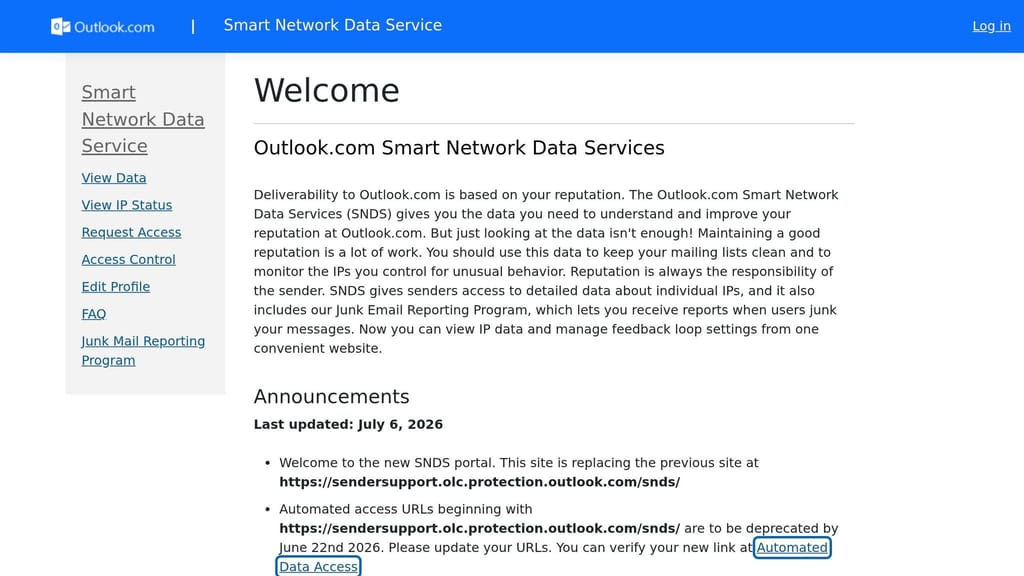
For Outlook, Hotmail, and Live recipients, Microsoft SNDS shows IP reputation and rejection errors. Keep an eye on 550 5.7.515. If that error shows up, pause that inbox and fix DNS alignment before you start sending again.
It also helps to use an inbox placement tool like GlockApps or Mailreach. That gives you a clearer read on where your emails are landing across Gmail and Outlook.
Build a Simple Weekly Maintenance Routine for SDR Teams
A steady weekly review takes less than 30 minutes and helps avoid most deliverability problems. Use it to decide which inboxes stay active, which need to move back into ramp-up, and which should be paused. If you're noticing increased bounces or declining metrics, check out these 7 ways to fix cold email deliverability issues before your sender reputation takes a major hit.
| Maintenance Task | Frequency | Tool | Target |
|---|---|---|---|
| List verification | Before every send | ZeroBounce / NeverBounce | < 2% bounce rate |
| Reputation check | Weekly | Google Postmaster / SNDS | "High" reputation |
| Blacklist audit | Weekly | Spamhaus / MXToolbox | 0 listings |
| DNS audit | Monthly | DMARC reports | 100% alignment |
| Cap review | Ongoing | Smartlead / Instantly | No mailbox exceeds its daily limit |
Use a custom tracking CNAME like link.yourdomain.com instead of a shared tracking domain. Shared tracking domains get flagged on a regular basis by spam filters, and that can hurt every sender using the same platform.
Conclusion: How to Scale In-House Cold Email Without Breaking Deliverability
If reputation starts to slip, cut volume first. Don't try to push more sends through weak inboxes. Add domains and mailboxes before you increase per-inbox volume.
Frequently asked questions
How many mailboxes do I need if my SDR team is sending 1,000 cold emails per day?+
For 500–1,000 emails per day, you should use 6–12 domains with a total of 18–36 mailboxes. Each mailbox should send 30–50 emails per day maximum to maintain healthy sender reputation and avoid triggering spam filters.
What is the correct warm-up timeline before starting cold outreach campaigns?+
Warm up new inboxes for 4–6 weeks total. Start with 5–20 emails per day for weeks 1–2 using warm-up tools only, then gradually increase to 40–80 total emails per day by weeks 5–6 while adding small cold campaigns starting in week 3.
Why should I use a secondary domain instead of my main company domain for cold email?+
Using a secondary domain or outreach subdomain protects your main brand domain from deliverability issues. If your cold email infrastructure faces reputation problems, bounces, or spam complaints, your primary domain remains unaffected and can continue normal business communications.
At what bounce rate and spam complaint rate should I pause an inbox immediately?+
Pause an inbox when bounce rate exceeds 5% or spam complaints go above 0.3%. Even before that, if bounce rate hits 2%, cut that inbox's volume by 50% the next day to prevent further reputation damage.
What is the main difference between Icemail.ai and manual mailbox setup in Google Workspace?+
Icemail.ai automates mailbox provisioning and DNS configuration (SPF, DKIM, DMARC) with onboarding in about 10 minutes, while manual setup in Google Workspace requires your team to create each mailbox and configure all DNS records individually. Icemail.ai is positioned as the faster premium option for in-house SDR teams.
How should I scale cold email volume when my current setup is maxed out?+
Scale by adding more domains and mailboxes, not by increasing volume per inbox. If you're at capacity, add new domains with fresh mailboxes rather than pushing existing inboxes beyond 30–50 emails per day to maintain deliverability.
What weekly monitoring tasks prevent deliverability problems before they start?+
Check Google Postmaster Tools and Microsoft SNDS weekly for reputation scores, verify DNS alignment monthly through DMARC reports, audit blacklist status weekly via Spamhaus or MXToolbox, and run list verification before every send to keep bounce rates under 2%. This routine takes less than 30 minutes per week.