
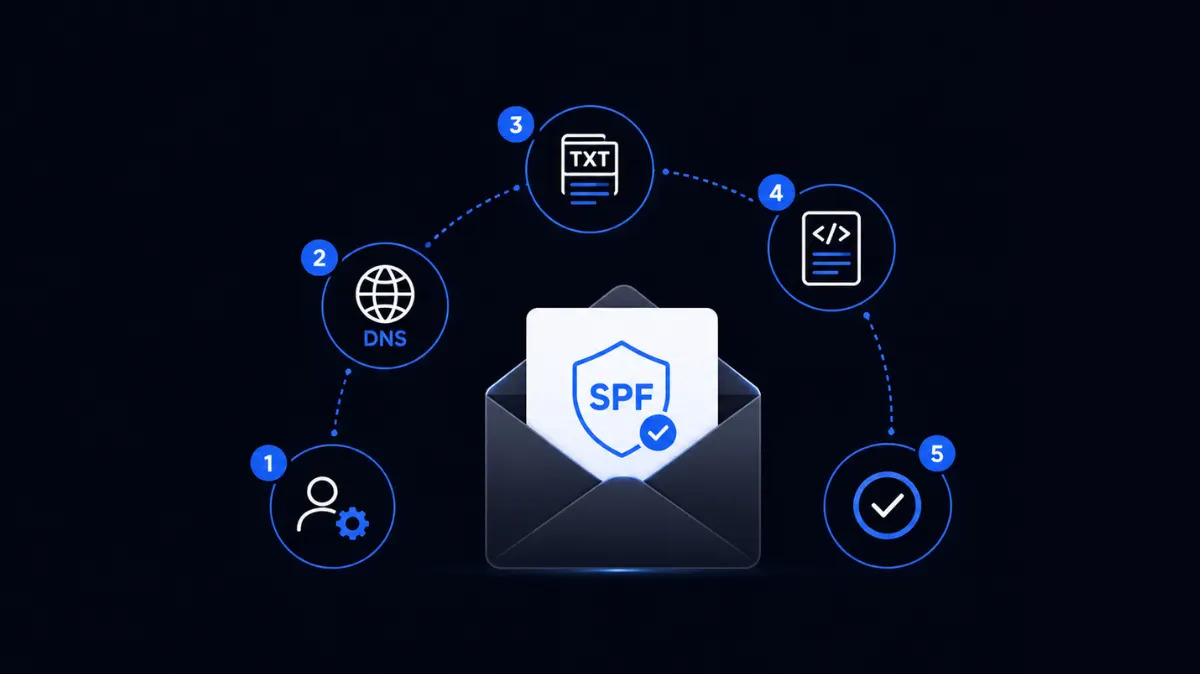
Knowing how to set up an SPF record correctly is the first thing to get right in your email authentication stack, everything else, including DKIM and DMARC, assumes SPF is already in place. This walkthrough covers the exact steps, the syntax, and the mistakes that cause SPF to silently fail even when the record looks fine.
What SPF actually does
SPF (Sender Policy Framework) is a DNS TXT record that lists every server allowed to send email on behalf of your domain. When a receiving mail server gets a message, it checks the sending server's IP against your domain's SPF record. If the IP isn't listed, the message can fail authentication, and depending on your DMARC policy, get rejected or sent to spam. For the bigger picture of how SPF fits alongside DKIM and DMARC, see the Pillar Guide to DKIM,SPF,and DMARC Setup.
Step 1: Find your existing record (if one exists)
Before adding anything, check whether your domain already has an SPF record. Having two separate SPF TXT records is invalid and will cause authentication to fail across the board, they need to be merged into one. You can check this with a free SPF checker before touching your DNS.
Step 2: Build the record
A basic SPF record looks like this: v=spf1 include:_spf.google.com ~all
v=spf1, declares the SPF version include:, pulls in another domain's list of authorized senders (used for third-party providers like Google Workspace or your ESP) ~all, soft-fail for anything not listed; some domains use -all for a hard fail once they're confident in the record If you're sending through multiple platforms, say, Google Workspace plus a cold email tool, you'll need an include statement for each one, all inside the same record.
Step 3: Watch the lookup limit
Every include statement counts toward SPF's 10-lookup limit. Go over it, and the entire record becomes invalid, not just the extra entries. This is one of the most common reasons SPF setup looks correct but fails validation. If you're managing several sending tools, read up on the SPF lookup limit before you add another include.
Step 4: Publish the TXT record
While thiknking about how to set up your SPF record, log into your DNS provider (Cloudflare, GoDaddy, Namecheap, or your registrar of choice), add a new TXT record at the root of your domain (@), and paste in your finished SPF string. Save, and give it time to propagate, this can take a few minutes or up to 48 hours depending on TTL.
Step 5: Verify it resolves
Once it's live, run the domain back through an SPF checker to confirm the record is published correctly and under the lookup limit. If you're also thinking how to setup SPF resord for Google Workspace and authenticating a Google Workspace domain, it's worth reviewing DKIM setup for Google Workspace at the same time, since SPF alone doesn't protect against message tampering, that's DKIM's job.
Step 6: Consider automating it
If you're doing this across more than a couple of domains, manually editing TXT records for each one gets error-prone fast. Look into automating SPF,DKIM, and DMARC setup once you're managing domains at scale, it removes the copy-paste risk entirely.
A Final Takeaway
That's the full process for how to set up an SPF record without guessing at syntax or blowing past the lookup limit. Get this record right first, and DKIM and DMARC setup go a lot more smoothly on top of it.
FAQ
Where do I add an SPF record, root domain or a subdomain?
SPF is published as a TXT record at the root of your domain (@), not a subdomain. If you're sending from a subdomain, that subdomain needs its own SPF record separate from the root domain's.
Can I have more than one SPF record for the same domain?
No. Multiple SPF TXT records on one domain are invalid per the spec and will cause authentication to fail entirely. If you need to add another sender, merge it into your existing record with an additional include statement instead.
What's the difference between ~all and -all in an SPF record?
~all is a soft fail, messages from unlisted servers are typically still delivered but flagged. -all is a hard fail, they're more likely to be rejected outright. Most domains start with ~all and move to -all once they're confident the record is complete.
How do I know if my SPF record is actually working?
Send a test email to yourself and check the message headers for an spf=pass result, or run your domain through an SPF checker to confirm the record is published and valid.
Why does my SPF record show as invalid even though I set it up correctly?
The most common cause is exceeding the 10-lookup limit, each include statement counts, and going over invalidates the entire record, not just the extra entries.