

DNS Setup Tips for Scaling Email Campaigns
If your DNS is off, inbox placement can fall apart before your campaign even starts. I’d focus on 8 things first: separate sending domains, MX, SPF, DKIM, DMARC, branded tracking links, automation, and warm-up limits.
Here’s the short version:
- I’d keep cold email on secondary domains or subdomains, not my main company domain
- I’d make sure MX records work before sending, so replies and bounce notices don’t get lost
- I’d keep one SPF record only and stay under the 10-lookup limit
- I’d turn on DKIM for every sender and check for
dkim=passin a live inbox - I’d start DMARC at
p=none, read reports for 2–4 weeks, then tighten policy in steps - I’d use a custom tracking CNAME so links use my own domain
- I’d audit DNS often, because one typo can hit many inboxes at once
- I’d warm inboxes slowly, starting at 5–10 emails per day, and stop if bounce rate goes above 2%
A few numbers matter right away: SPF allows only 10 DNS lookups, DKIM keys should be 2048-bit, DMARC should move to stricter policy only after 95%+ of good mail passes alignment, and cold outreach should stay around 40–50 sends per inbox per day max before adding more inboxes.
My takeaway: DNS is not just setup work. It’s what keeps sending stable as volume grows. If I were scaling email, I’d treat DNS checks like part of the sending process, not a one-time task.
FREE Email Deliverability Full Course (Email Setup 2024-2025)
1. Icemail.ai - Cold email Infrastructure (Buy Google and Microsoft Mailboxes at $2)
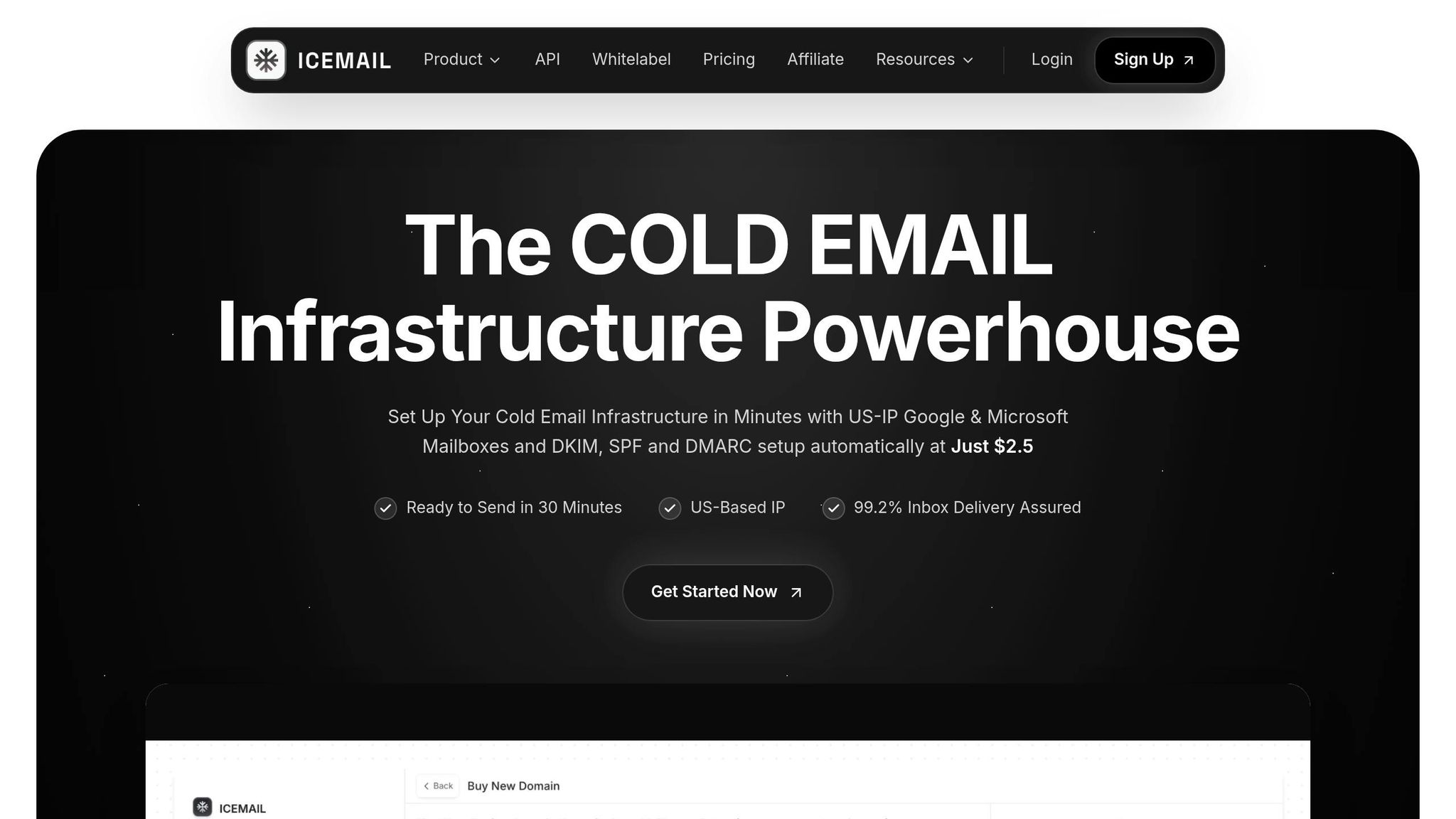
At scale, DNS mistakes can tank deliverability fast. Icemail.ai is built to handle the messy part of mailbox setup by automating DNS-heavy provisioning for Google Workspace and Microsoft 365 mailboxes.
That means SPF, DKIM, and DMARC are set up automatically, so each new mailbox starts aligned with Google and Microsoft authentication rules before you ramp up sending volume.
Once your provisioning process is locked in, the next move is simple: keep your sending domains separate from your primary domain.
2. Use Separate Sending Domains and Subdomains
After mailbox provisioning, keep your sending domains separate from your core brand. The goal is simple: isolate cold email reputation from your main domain.
Subdomains can help split different email streams. But for cold outreach, secondary domains usually give you the cleanest separation. Set up secondary brand domains just for sending, such as getacme.com or tryacme.com.
Stick with a mainstream TLD and choose a domain that still fits your brand. Each secondary domain builds its own reputation over time. So if one gets flagged or blacklisted, your primary domain stays protected.
It also helps to spread sending across multiple domains instead of putting all your volume on one. Once that's in place, verify the domain’s mail routing with MX records.
3. Set Up MX Records Correctly Before Sending
Once your sending domains are set, MX records are the next thing to fix before you send a single email.
If your MX records are wrong or missing, replies can bounce, and bounce notices may never make it back to you. That creates a mess fast. On top of that, a domain with no MX can look inactive or suspicious. Receiving servers often check MX records before accepting mail, so a missing record can hurt outbound deliverability even if you only plan to send outbound messages.
If the domain is outbound-only, point the MX record to a monitored catch-all mailbox.
Use the right MX host for your provider:
| Provider | Primary MX Host | Priority |
|---|---|---|
| Google Workspace | aspmx.l.google.com | 1 |
| Microsoft 365 | <tenant>.mail.protection.outlook.com | 0 |
If you're using Cloudflare, set MX records to DNS-only. Also remove any old default MX records your registrar may have left behind. Those stale records can conflict with the ones you actually want.
Before you start sending, confirm the records have propagated the right way with MXToolbox or dig MX yourdomain.com. MX changes can take 24 to 48 hours to propagate.
After MX is confirmed, consolidate SPF into one record.
4. Consolidate SPF Into One Valid Record
Once your MX setup is correct, the next job is SPF. This is where things often get messy, especially after you add Google Workspace, Microsoft 365, and one or more ESPs.
Here’s the key rule: a domain can have only one SPF record, and it must start with v=spf1. If you publish two SPF TXT records, you’ll trigger a PermError. When that happens, receiving mail servers ignore SPF checks for your domain.
So instead of stacking separate SPF entries, combine every approved sender into a single record. For example:
v=spf1 include:_spf.google.com include:sendgrid.net ~all
Once the record is valid, watch the next limit: SPF allows 10 DNS lookups total, and that count includes nested lookups from your vendors. That’s where setups can break without warning.
A few ways to keep things under control:
- Use
ip4:orip6:for mail servers you manage - Remove old
include:entries you no longer need - Split mail streams onto subdomains if different teams or tools need their own SPF space
If separate tools need their own SPF budget, give each one a dedicated subdomain with its own SPF record. During testing, use ~all. After you confirm everything is working, move to -all.
Before sending at scale, verify that you have one SPF record and fewer than 10 lookups. You can check with MXToolbox or run:
dig txt yourdomain.com +short
That gives you a quick read on whether the domain is set up to send high volume mail.
5. Enable DKIM for Every Mailbox Provider and ESP
DKIM adds a signature to outgoing email so the receiving server can check that the message came from your domain. That matters even more at scale. If one sender is left unsigned, it can drag down the reputation of every mailbox tied to that domain.
Once your DNS record is live, verify every service that sends mail from the domain. That includes Google Workspace, Microsoft 365, ESPs like SendGrid or Mailgun, and any sequencing tool you use. Each provider uses its own selector, so more than one service can sign the same domain without stepping on each other.
Here’s how the most common setups usually look:
| Provider | Selectors |
|---|---|
| Google Workspace | google |
| Microsoft 365 | selector1, selector2 |
| Third-Party ESPs | Varies (s1, k1, mta1) |
Publish the DNS record first. After that record has propagated, turn on signing inside the provider’s admin console.
Use 2048-bit DKIM keys. 1024-bit keys are old and weaker for deliverability. If a 2048-bit key is too long for a single TXT string, split it into multiple quoted strings within the same record.
Then check the signature in a live inbox, not just in DNS. Send a test email to a Gmail or Outlook address and open the Authentication-Results or Show Original header. You want to see dkim=pass with the right domain. If you see dkim=fail, or no DKIM result at all, pause there and fix it before sending more mail. Test in Gmail or Outlook, confirm dkim=pass, then increase volume.
Once DKIM is passing, move to DMARC so you can enforce alignment and watch for failures.
6. Publish a DMARC Policy and Review Reports
After DKIM, publish DMARC so receiving servers know what to do with mail that fails SPF or DKIM alignment. Put simply, DMARC is the rulebook for SPF and DKIM failures. It checks whether the visible From domain lines up with SPF or DKIM. If DKIM passes, DMARC helps receivers decide how to handle anything that doesn’t match.
Start with p=none first. This is a monitoring-only setting, so your mail keeps flowing while you collect data and spot problems. A solid starter record looks like this:
v=DMARC1; p=none; rua=mailto:dmarc@yourdomain.com; aspf=r; adkim=r
Here, aspf=r and adkim=r both mean relaxed alignment. That tends to work well for most setups, especially if you send from subdomains.
DMARC reports come in XML, which isn’t much fun to read by hand. Use a parser instead. Tools like EasyDMARC, dmarcian, and Postmark DMARC turn those reports into something you can scan without going cross-eyed.
For the first 2–4 weeks, review reports every week. Check every system that sends mail from your domain. Pay close attention to:
- unauthorized IPs
- alignment failures
- SPF
PermErrorissues
Use those reports to confirm that your valid mail is passing before you tighten policy. Once reports show 95%+ of legitimate traffic passing alignment, start enforcement in small steps. This is where the pct tag helps. For example, p=quarantine; pct=25 sends only 25% of failing mail to spam at first.
Give each step time. Wait at least 2 weeks before increasing enforcement. The rollout path looks like this:
| Policy Stage | DMARC Record | Action on Failure |
|---|---|---|
p=none | Monitoring only | No action; collect reports |
p=quarantine; pct=25 | Partial enforcement | 25% of failures go to spam |
p=quarantine; pct=100 | Full quarantine | All failures go to spam |
p=reject | Maximum enforcement | Block failures |
After DMARC is stable, protect your links with branded tracking CNAMEs.
7. Add Custom Tracking CNAMEs for Branded Links
Once authentication is set up, it helps to separate your tracked links too. Most default ESP tracking domains are shared across many senders. That means someone else's bad behavior can spill over and hurt your deliverability. Not ideal.
The fix is pretty simple: create a branded CNAME for link tracking and point it to your ESP's tracking server. For example, you might add track.getacme.com as a CNAME that points to your ESP's custom tracking host. Then, when links are tracked, they use your domain instead of a generic third-party URL.
After you add the CNAME, give DNS a little time to propagate. Then verify the record with MXToolbox or DNS Checker.
That way, your branded links stay in line with the rest of your sending DNS.
8. Automate DNS Management and Ongoing Monitoring
Manual DNS is fine when you're dealing with one or two domains. Once that number grows, things get messy fast. A single typo, a missing selector, or a duplicate record can damage deliverability across every domain tied to that setup. After your record set is in good shape, automate your checks so it stays that way.
The main issue here is DNS drift. You add a new tool, change a record, and suddenly your SPF record is over the 10-lookup limit. That kind of problem can sit there quietly until inbox placement starts slipping. DKIM keys need attention too. Rotate them every 6 to 12 months so old keys don't turn into a hidden deliverability problem.
"Deliverability isn't a feature you set up once. It's a system you maintain every single day." - Mitchell Keller, Founder & CEO, LeadGrow
This is where Icemail.ai does a lot of the heavy lifting. It automates SPF, DKIM, DMARC, and bulk domain management, which cuts down on manual DNS drift across large domain sets. That said, automation isn't magic. You still need to verify every record it creates.
For day-to-day monitoring, use Google Postmaster Tools and Microsoft SNDS to watch domain reputation in real time. Run a full DNS audit every quarter. Records drift, old services get left behind, and new tools often get added without the right authentication.
A few checks matter more than most:
- If Google Postmaster drops a domain to Medium, pause cold sending and warm the domain again for 2 to 3 weeks before you start back up.
- Use
dig +short TXT yourdomain.comto confirm that the SPF record still resolves. - Review new tools and sending services before scaling volume, so they don't slip bad DNS changes into production.
Use the quick-reference table below to verify each record before scaling volume.
Core DNS Records at a Glance
Use this checklist to verify your DNS before you increase send volume. Each record has its own job, and if even one is missing or misconfigured, inbox placement can take a hit.
| Record | DNS Location | Record Type | Primary Function | Deliverability Impact |
|---|---|---|---|---|
| MX | Root (@) | MX | Routes inbound email to the correct server | Missing MX can make a sending domain look incomplete to mailbox providers. |
| SPF | Root (@) | TXT | Lists authorized IPs and services allowed to send mail | 10 DNS lookup limit; excess causes PermError. |
| DKIM | selector._domainkey | TXT or CNAME | Adds a cryptographic signature to outgoing mail | Use 2048-bit keys. |
| DMARC | _dmarc | TXT | Tells ISPs how to handle SPF/DKIM failures | Controls failure handling and exposes unauthorized senders. |
| Tracking CNAME | Subdomain (e.g., links) | CNAME | Creates branded link tracking | Keeps branded links off shared ESP domains. |
A quick way to think about it: MX handles incoming mail, SPF and DKIM help prove who sent the message, DMARC sets the rules when checks fail, and the tracking CNAME keeps your links branded.
If you use Cloudflare, set tracking CNAMEs to DNS-only.
Once these records are clean, volume caps and warm-up determine how fast you can scale.
Warm-Up, Volume Caps, and DNS Readiness
Once your records are live, put them through actual mail flow before you start warm-up. A record sitting in DNS isn't enough. It has to pass in live messages.
Check Gmail's Show Original headers and confirm you see:
spf=passdkim=passdmarc=pass
If any of those show FAIL or SOFTFAIL, fix the record before you send anything else. For new DKIM records, wait at least 48 hours for global propagation before you test. You can also use Mail-tester.com as a second check.
When your records are clean, start warm-up traffic and keep early cold outreach tight. Start real cold sends at 5–10 emails per day. Then move up slowly, and only if your numbers stay steady for 7 consecutive days:
- Bounce rate below 2%
- Spam complaint rate below 0.1%
- Inbox placement above 80% on seed tests
If bounce rate goes above 2% or spam complaints pass 1 per 1,000 emails, stop and fix the problem before you continue.
Here’s a realistic 8-week ramp that keeps volume gradual while building sender reputation:
| Week | Cold Sends/Day | Warm Sends/Day | Total/Day |
|---|---|---|---|
| 1 | 5 | 10 | 15 |
| 2 | 10 | 10 | 20 |
| 3 | 15 | 8 | 23 |
| 4 | 20 | 8 | 28 |
| 5 | 25 | 7 | 32 |
| 6 | 30 | 7 | 37 |
| 7 | 35 | 5 | 40 |
| 8+ | 35–40 | 5 | 40–45 |
If metrics slip, don't keep pushing volume. Fix the DNS or reputation problem first.
Keep warm-up running at 5–10 emails per day during outreach.
Once you get past 40–50 sends per inbox per day, don't pile more volume onto the same inbox. Add more inboxes and domains instead. Split sends across them to protect sender reputation as you grow.
Common DNS Mistakes That Hurt Deliverability
Once setup is done, the next step is simple: check for the mistakes that wreck deliverability most often. This matters even more at scale, where one small DNS problem can spread across domains and inboxes in a hurry.
Here are the issues that show up again and again:
| Record | Common Mistake | What It Breaks |
|---|---|---|
| SPF | Two SPF TXT records on one domain | Receiving servers fail SPF |
| SPF | More than 10 include: lookups | Authentication failure across all sends |
| DKIM | Signing not enabled in the provider console | Mail goes unsigned despite the DNS record existing |
| DKIM | 1024-bit key still in use | Higher spam risk and authentication issues |
| DMARC | Reports not reviewed | Alignment failures and unauthorized senders go undetected |
| MX | Stale records from a previous provider | Bounces and replies route to a dead inbox |
| Sending domain | Primary domain used for cold outreach | Complaints affect all company mail |
A common trap is trusting the green checkmarks inside your email platform. Those badges can help, but they don't tell the whole story. Use public DNS checks to make sure the records are live and visible outside the platform.
For each update, confirm it with dig +short TXT yourdomain.com, not just the ESP dashboard. That extra check can save you from the kind of quiet DNS issue that looks fine on the inside while mail fails in the wild.
Conclusion
Once your records are set up, scaling turns into a monitoring job instead of a setup job. The main move is simple: protect sender reputation by using dedicated sending domains and subdomains. Before you increase volume, check SPF, DKIM, DMARC, MX, and tracking CNAMEs to make sure everything is in place.
If you want to roll out to more inboxes with less manual work, automation can handle most of the DNS setup. Icemail.ai sets up SPF, DKIM, and DMARC for Google Workspace and Microsoft 365 mailboxes for $2 per inbox.
As you add more domains, keep a close eye on Google Postmaster Tools, Microsoft SNDS, and your DMARC reports.